
CONTROLEUR AUDIO T1 TONEMATCH - Contrôleur audio BOSE - Notice d'utilisation et mode d'emploi gratuit
Retrouvez gratuitement la notice de l'appareil CONTROLEUR AUDIO T1 TONEMATCH BOSE au format PDF.


| Marque | BOSE |
| Modèle | CONTROLEUR AUDIO T1 TONEMATCH |
| Type de produit | Contrôleur audio pour systèmes L1 |
| Dimensions (L x l x H) | 208,9 x 165,5 x 67,6 mm |
| Poids | 0,97 kg |
| Alimentation | Via port ToneMatch (L1 model II) ou adaptateur secteur optionnel (T1 ToneMatch audio engine power supply) |
| Convertisseur A/N et N/A | 24 bits |
| Taux d'échantillonnage | 48 kHz |
| Entrées analogiques | 3 entrées combo XLR/TRS (canaux 1-3), 1 entrée ligne stéréo TRS (canaux 4/5) |
| Sorties analogiques | 1 sortie préampli par canal (1-3), 1 sortie Aux, 1 sortie Master (TRS) |
| Interface USB | USB 1.1, Type A vers Type B |
| Présélections ToneMatch | Intégrées, organisées par catégories d'instruments/micros |
| Effets intégrés | Compresseur/Gate, Mod (Chorus, Flanger, Phaser, Trémolo), Delay (numérique, analogique, bande), Réverbération (Plate, Small, Medium, Large, Cavern) |
| Égalisation | zEQ (3 bandes), Para EQ (fréquence, largeur, gain) |
| Fonctions supplémentaires | Accordeur chromatique, gestion des scènes (10 utilisateur + 5 Bose), routage Aux, métriques de niveau |
| Montage | Sur enceinte Cylindrical Radiator (fourni) ou sur pied micro (optionnel) |
| Entretien et nettoyage | Chiffon doux et sec, ne pas utiliser de solvants ni de sprays |
| Sécurité | Utilisation en intérieur uniquement, ne pas exposer à l'humidité, débrancher en cas d'orage |
| Pièces détachées et réparabilité | Contacter le support technique Bose au (877) 335-2673 pour réparation |
| Garantie | Garantie limitée transférable, enregistrement en ligne possible |
| Accessoires inclus | Mallette de transport, cache de protection, câble ToneMatch, chariot de montage, barre de fixation |
FOIRE AUX QUESTIONS - CONTROLEUR AUDIO T1 TONEMATCH BOSE
Questions des utilisateurs sur CONTROLEUR AUDIO T1 TONEMATCH BOSE
0 question sur cet appareil. Repondez a celles que vous connaissez ou posez la votre.
Poser une nouvelle question sur cet appareil
Téléchargez la notice de votre Contrôleur audio au format PDF gratuitement ! Retrouvez votre notice CONTROLEUR AUDIO T1 TONEMATCH - BOSE et reprennez votre appareil électronique en main. Sur cette page sont publiés tous les documents nécessaires à l'utilisation de votre appareil CONTROLEUR AUDIO T1 TONEMATCH de la marque BOSE.
MODE D'EMPLOI CONTROLEUR AUDIO T1 TONEMATCH BOSE
T1 ToneMatch™
AUDIO ENGINE
Owner's Guide
To get sound right away
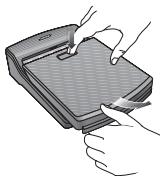
- Remove your new T1 ToneMatch™ audio engine from the carrying bag and remove its protective cover (page 6).
- Refer to the Quick Setup Guide and connect your T1 to your L1™ system.
- Make sure the T1 Master volume control is set to 0 (page 16).
- Turn on the T1 and then turn on your L1 model II system.
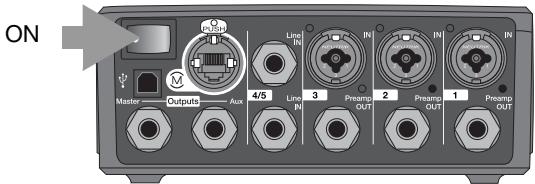
- Plug your instrument or microphone into the Channel 1 input on the back of the T1 (page 4).
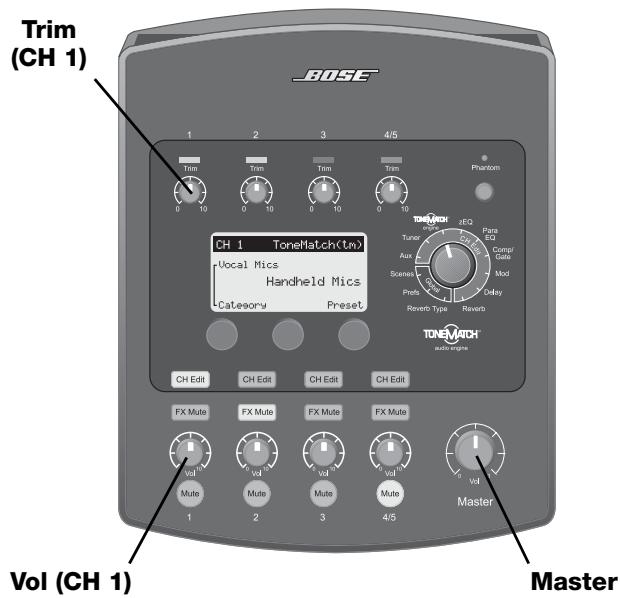
- Play your instrument or sing into the microphone. Turn the CH 1 Trim control clockwise until the input signal indicator glows green (page 16).
- Slowly turn the T1 Master volume control up until it is approximately in the 12 o'clock position (page 16).
- Slowly turn the CH 1 Vol control up until you hear your instrument or microphone (page 16).
IMPORTANT!
Please make sure you read "Optimizing input gain and output volume" on page 16. This explains how to properly adjust the input trim, channel volume, and master volume controls for the best possible sound.
To shape your sound
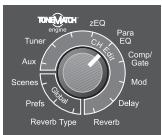
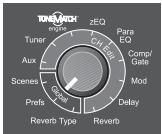
Rotate the T1 rotary selector to choose a function.
Use the display information and control buttons under the display to change the settings (see "Reading the T1 display" on page 18).
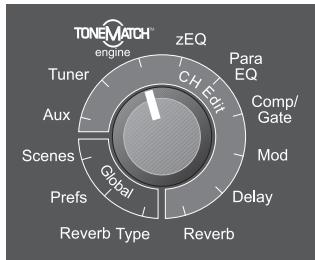
- ToneMatch™ engine: Select a preset designed for your specific instrument or microphone (see “Selecting a Tone-Match™ preset” on page 20).
- zEQ: Adjust the low/mid/high-frequency bands specific to the selected ToneMatch preset (see "Adjusting zEQ" on page 21).
- Para EQ: Fine-tune the equalization (see "Adjusting Para EQ" on page 21).
-
Comp/Gate: Add some dynamics controls like compression, limiter, or a gate (see "Using compressor/gate functions" on page 22).
-
Mod: Add a modulation effect like chorus or a flanger (see "Using modulation effects" on page 24).
- Delay: Add a delay (see "Adding delays" on page 25).
- Reverb: Add some reverb (see “Adding reverb” on page 26).
- Reverb Type: Select a reverb type to affect all channels (see "Selecting a type of reverb" on page 27).
- Prefix: View the status display, which shows you the activated effects on each channel (see "Using the Prefix utilities" on page 28).
- If you like the sound that you have created, turn the T1 rotary selector to Scenes and save your settings as a new scene. If you don't like it, try loading one of the five Bose scenes to use as a new starting point (see "Loading and saving scenes" on page 32 and "Bose scenes" on page 37).
The inside of this owner's guide provides more information on using these features and others not mentioned here. To get the most out of your T1 ToneMatch audio engine, please read this owner's guide.
For additional help, visit www.Bose.com/musicians.
Please read this owner's guide
Please take the time to follow the instructions in this owner's guide carefully. It will help you set up and operate your system properly and enjoy its advanced features. Please save this owner's guide for future reference.

WARNING:
- To reduce the risk of fire or electrical shock, do not expose the product to rain or moisture.
- The T1 power supply and the T1 ToneMatch™ audio engine shall not be exposed to dripping or splashing, and objects filled with liquids, such as vases, shall not be placed on the apparatus. As with any electronic products, use care not to spill liquids into any part of the system. Liquids can cause a failure and/or a fire hazard.
- No naked flame sources, such as lighted candles, should be placed on the apparatus.

Notes:
The product must be used indoors. It is neither designed nor tested for use outdoors, in recreation vehicles, or on boats.
- The product label is located on the bottom of the product.
- The T1 ToneMatch audio engine must be powered only by an L1TM model II power stand or a T1 ToneMatch audio engine power supply.
- The mains plug is used as the disconnect device and should remain readily operable. To completely disconnect the apparatus from the mains, disconnect the mains plug from the mains outlet.

This product conforms to the EMC Directive 89/336/EEC and to the Low Voltage Directive 73/23/EEC. The complete Declaration of Conformity can be found on www.Bose.com/static/compliance/index.html.
©2007 Bose Corporation. No part of this work may be reproduced, modified, distributed or otherwise used without prior written permission.
- Read these instructions.
- Keep these instructions.
- Heed all warnings.
- Follow all instructions.
- Do not use this apparatus near water.
- Clean only with a dry cloth.
- Do not block any ventilation openings. Install in accordance with the manufacturer's instructions.
- Do not install near any heat sources, such as radiators, heat registers, stoves or other apparatus (including amplifiers) that produce heat.
- Do not defeat the safety purpose of the polarized or grounding-type plug. A polarized plug has two blades with one wider than the other. A grounding-type plug has two blades and a third grounding prong. The wider blade or third prong is provided for your safety. If the provided plug does not fit into your outlet, consult an electrician for replacement of the obsolete outlet.
- Protect the power cord from being walked on or pinched, particularly at plugs, convenience receptacles, and the point where they exit from the apparatus.
- Only use attachments/accessories specified by the manufacturer.
- Use only with the cart, stand, tripod, bracket or table specified by the manufacturer or sold with the apparatus. When a cart is used, use caution when moving the cart/apparatus combination to avoid injury from tip-over.

- Unplug this apparatus during lightning storms or when unused for long periods of time.
- Refer all servicing to qualified service personnel. Servicing is required when the apparatus has been damaged in any way, such as power-supply cord or plug is damaged, liquid has been spilled or objects have fallen into the apparatus, the apparatus has been exposed to rain or moisture, does not operate normally, or has been dropped.
- To prevent risk of fire or electric shock, avoid overloading wall outlets, extension cords, or integral convenience receptacles.
- Do not let objects or liquids enter the product.
- See product enclosure bottom for safety related markings.
- Use proper power sources.
Information about products that generate electrical noise
This equipment has been tested and found to comply with the limits for a Class A digital device, pursuant to Part 15 of the FCC rules. These limits are designed to provide reasonable protection against harmful interference in a commercial environment. This equipment generates, uses, and can radiate radio frequency energy and, if not installed and used in accordance with the instructions, may cause harmful interference to radio communications. Operation of this equipment in a residential area is likely to cause harmful interference, in which case the user will be required to correct the interference at his own expense.
This product complies with the Canadian ICES-003 Class A specifications.
INTRODUCTION 1
Welcome 1
Product overview 2
Controls and indicators 3
Connection panel 4
SYSTEM SETUP 5
Unpacking 5
Removing/attaching the cover 6
Mounting options 7
Connecting the T1 to an L1TM model II power stand 11
Connecting the T1 to an L1 model I power stand 12
Connecting the T1 ToneMatchTM audio engine power supply (optional) 14
Connecting the T1 to your computer 15
OPERATING INSTRUCTIONS 16
Optimizing input gain and output volume 16
Using the Master volume control 17
Muting a channel 17
Muting channel effects 17
Reading the T1 display 18
Using the T1 rotary selector 19
Editing the sound of a channel 20
Selecting a ToneMatchTM preset 20
Adjusting zEQ 21
Adjusting Para EQ 21
Using compressor/gate functions 22
Using the KickGate 23
Using modulation effects 24
Adding delays 25
Addingreverb 26
Routing input signals to the Aux output 26
Using the tuner 27
Using global functions 27
Selecting a type of reverb 27
Using the Prefix utilities 28
Loading and saving scenes 32
Sharing a scene 35
Bose scenes 37
Factory Settings 37
Singer/Songwriter 38
DJ/Playback 40
Drums and Bass 42
The Works scene 44
FACTORY SETTINGS 46
CARE & MAINTENANCE 48
Cleaning 48
Limited Warranty and Registration 48
48
Troubleshooting 48
Technical information 53
Welcome
Thank you for purchasing the Bose® T1 ToneMatch™ audio engine. The T1 ToneMatch™ audio engine provides the ultimate control for performing musicians. When used with the Bose L1™ model II or model I system, the T1 allows you to control the sound of your instrument as well as the output of the entire system. Using proprietary ToneMatch presets and associated zEQ tonal adjustments, the T1 enables you to preserve the natural sound of instruments or vocal microphones when amplified. Designed by musicians, for musicians, the Bose T1 ToneMatch™ audio engine is contained in a small, portable enclosure that you can keep beside you during a performance.
Features and benefits
- Quick and easy-to-use interface
- One-cable connection to L1™ model II loudspeaker ToneMatch™ port
- Mountable on a Cylindrical Radiator® loudspeaker or a microphone stand
- High-quality, low-noise preamps in each channel, allowing the use of almost any instrument or microphone
- LED display and illuminated controls for playing on dimly-lit stages
- ToneMatch presets, a proprietary technology that optimizes system equalization to preserve the natural sound of specific instruments or microphones
- zEQ, working in conjunction with the ToneMatch technology, automatically adjusts the low, mid, and high frequency bands for the selected preset, allowing further tonal shaping
Built-in chromatic tuner - Performance scenes that can be saved and recalled
- Two flexible analog outputs
- System updates and ToneMatch presets available at www.Bose.com/musicians
- USB audio interface to your computer
- Compatible with L1™ model I and model II systems
For more information
This owner's guide provides only basic setup and operating instructions. For more in-depth information on using this system, including tips, techniques, and frequently asked questions, please visit www.Bose.com/musicians.
Product overview
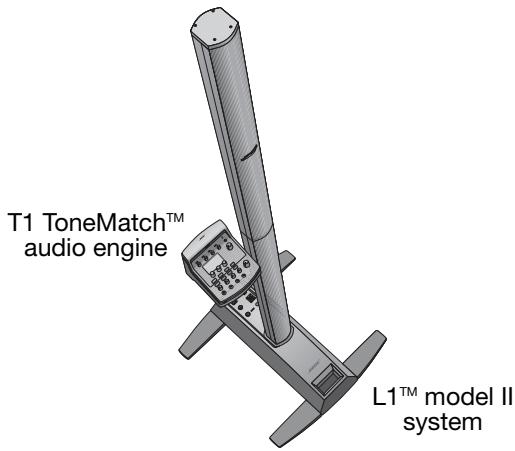
The T1 ToneMatch™ audio engine can be used with a Bose® L1™ model II or model I system. For convenient access, you can mount the T1 on a Cylindrical Radiator® loudspeaker or on a microphone stand using the optional microphone stand bracket. When used with the L1™ model II system, the T1 operates on DC power received from the power stand. The optional T1 ToneMatch™ audio engine power supply is used to power the T1 when it is connected to an L1™ model I system or a USB port on your computer.
Figure 1
T1 ToneMatchTM audio engine and accessories
T1 ToneMatch™ audio engine and the L1 model II system
Optional accessories
T1 ToneMatchTM audio engine power supply
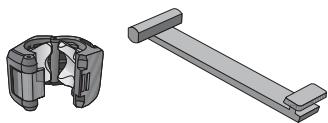
ToneMatchTM audio engine microphone stand bracket
To order accessories, call (800) 905-0886 or visit www.Bose.com/musicians.
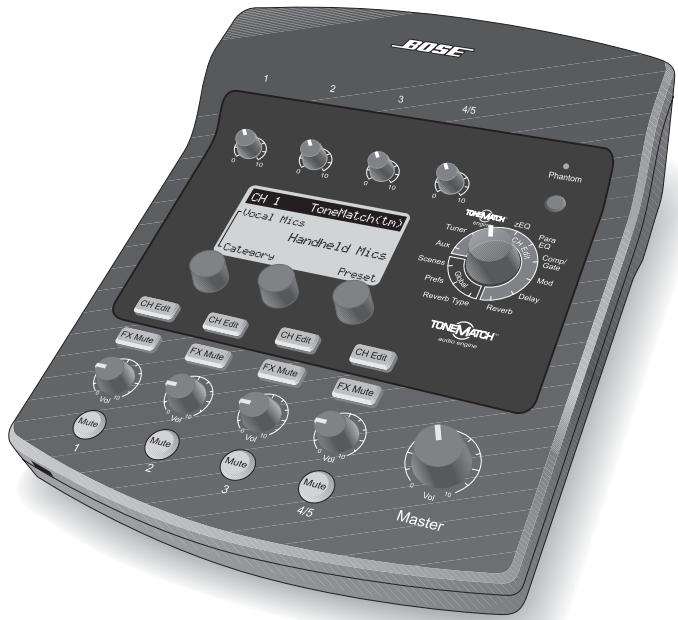
Controls and indicators
The control panel provides all the necessary controls and indicators for operation.
Top panel
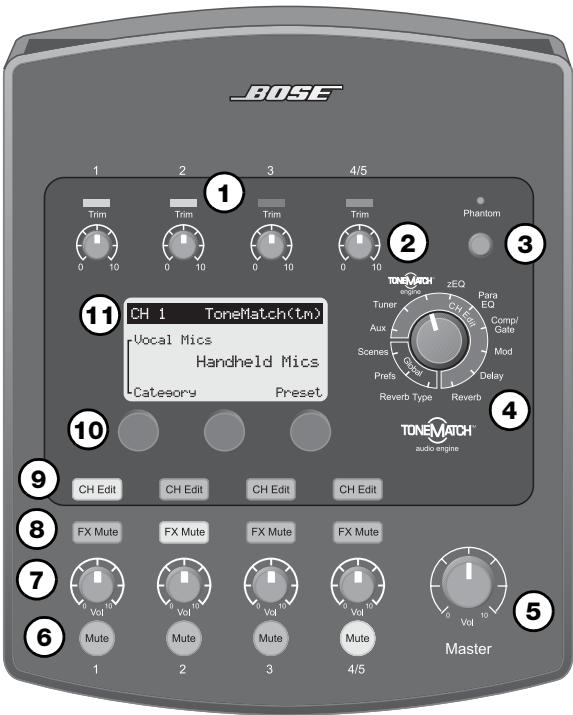
Figure 2
- Input signal/clip LEDs (1-4/5) - Displays the input signal status in color: Green indicates the presence of an input signal, yellow indicates a signal near clipping, and red indicates clipping.
- Trim controls (1-4/5) - Adjusts the input sensitivity for the respective channel.
- Phantom power switch - Applies +48V power to input channels 1-3. A red LED indicates that phantom power is on.
- T1 rotary selector - Allows access to both global and channel-related parameters, which are adjusted using the editing controls.
- MASTER volume control - Adjusts the overall output level.
- Mute buttons (1-4/5) - Silences the audio output for the respective channel.
- Volume controls (1-4/5) – Adjusts the volume level for the respective channel.
- FX mute buttons (1-4/5) – Bypasses the Mod, Delay, and Reverb effects on the selected channel.
- CH Edit buttons (1-4/5) - Selects the channel you want to modify using the T1 rotary selector and display-related editing controls.
- Editing controls – These three rotary/push-button controls allow you to select or adjust items/values appearing on the display.
- Display - Provides function menus and system status information.
Connection panel
The rear panel provides all input/output connections.
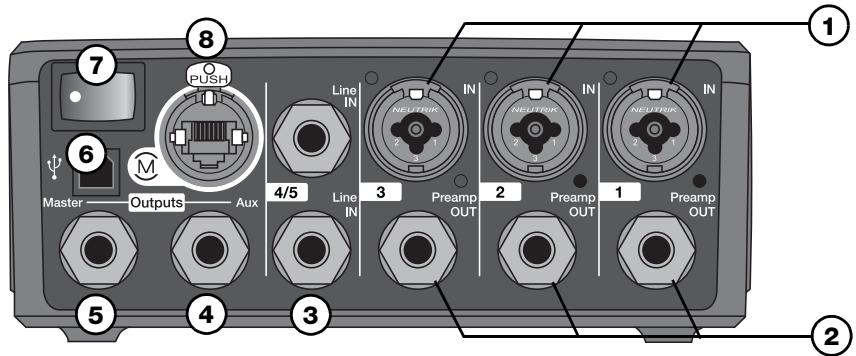
Figure 3 T1 conne panel
- IN - Analog input channels 1-3. Accepts XLR balanced cables for microphones, or 14 TRS balanced or TS unbalanced cables for high-impedance inputs such as guitars.
- Preamp OUT - Preamp outputs for channels 1-3. Accepts 14 TRS balanced or TS unbalanced cables.
- Line IN - Analog input channels 4/5. Accepts 14 TRS balanced or TS unbalanced cables for line-level inputs. Can be used for stereo input signals.
- Aux Output - User-definable analog output. Can be configured for a pre-fader, post-EQ, and effects, or post-fader output. Accepts 14 TRS balanced or TS unbalanced cables.
- Master Output - User-definable analog output. Can be configured for a pre- or post-Master volume analog output. Accepts 14 TRS balanced or TS unbalanced cables.
- USB port - A USB interface that allows you to connect the T1 to your computer. This feature enables you to stream audio to/from your computer, update the T1, and back up performance scenes.
- Power switch - Turns the T1 audio engine on or off.
- - ToneMatchTM port - A digital output used by the L1TM model II system. Also delivers power to the T1 audio engine from the L1 model II power stand. Accepts the included ToneMatchTM cable.
CAUTION: Although the ToneMatch port accepts a standard RJ-45 connector, DO NOT connect the T1 to a computer or phone network.
Unpacking
The items packed in the carton are shown in Figure 4. Carefully unpack the carton and check that you have all the items shown here. Keep all packing materials for possible future use.

Figure 4
WARNING: To avoid danger of suffocation, keep the plastic bags out of the reach of children.
Parts list
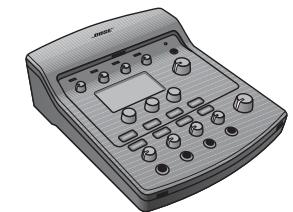
T1 ToneMatch™ audio engine
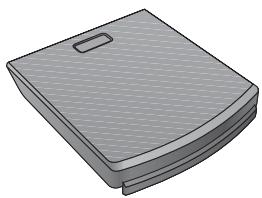
Cover
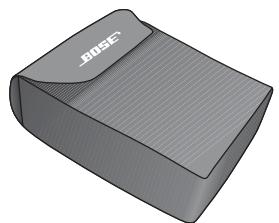
Carrying case
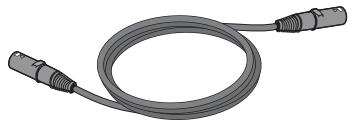
ToneMatch™ cable
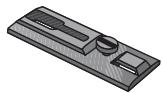
Carriage
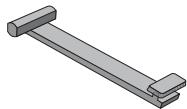
Mounting bar
Serial numbers and product registration
Now is a good time to record the serial number of your T1 ToneMatch™ audio engine here and on your product registration card. You can register your product online at www.Bose.com/register or call (800) 905-1044. Failure to do so will not affect your warranty rights.
Serial Number:
Removing/attaching the cover
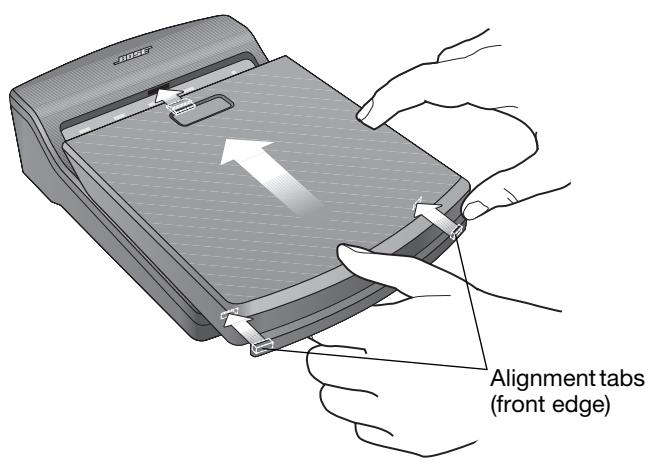
The T1 ToneMatch™ audio engine comes out of the carton with a cover installed on the top panel. The cover is designed to protect the control panel while transporting or storing the audio engine.
To remove the cover:
- Press and hold the cover latch release button (Figure 5).
- Slide the cover off the control panel just enough to disengage the alignment tabs.
- Lift up on the front edge of the cover to remove it.
To attach the cover:
- Place the cover on the T1.
- Align the tabs inside the cover with the holes on the front edge of the T1.
- Slide the cover over the control panel until you hear the click of the latch.
Removing and attaching the cover
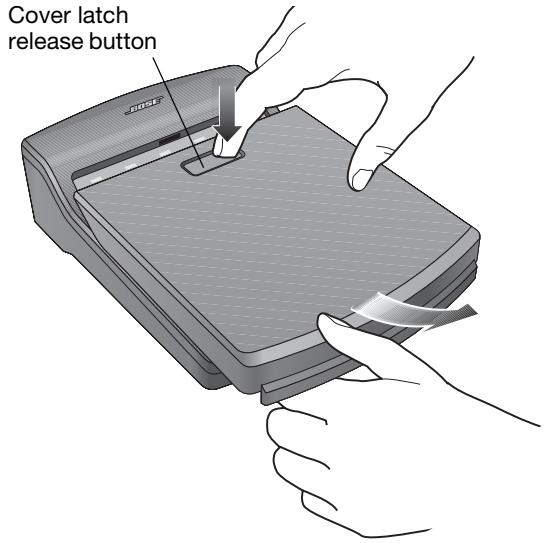
Figure 5
Mounting options
The T1 includes hardware for mounting it on a Cylindrical Radiator® loudspeaker.
The optional microphone stand mounting bracket allows you to mount the T1 on the shaft of most microphone stands. See "Mounting the T1 on a microphone stand (optional)" on page 9.
Mounting the T1 on a Cylindrical Radiator® loudspeaker
Use the carriage and mounting bar included in the carton to mount the T1 on the Cylindrical Radiator loudspeaker.
The mounting bar is stored inside the T1 cover (Figure 6). Open the latch and lift the mounting bar from the case.
Removing mounting bar from cover
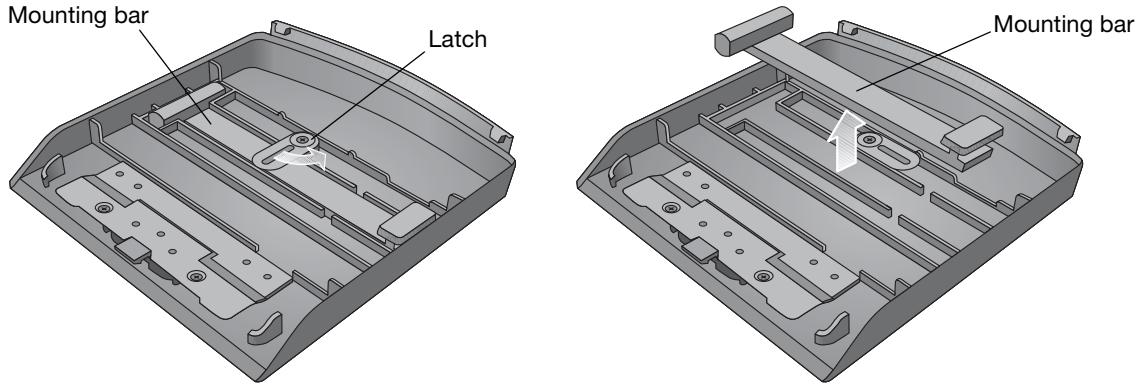
Figure 6
The Cylindrical Radiator® top section needs to be removed for this installation.
- Slide the carriage into the channel on the rear of the Cylindrical Radiator® bottom section and turn the locking knob clockwise to lock it in place (Figure 7).
- Insert the mounting bar into the slot in the carriage and push it downward.
- Place the T1 on the mounting bar.
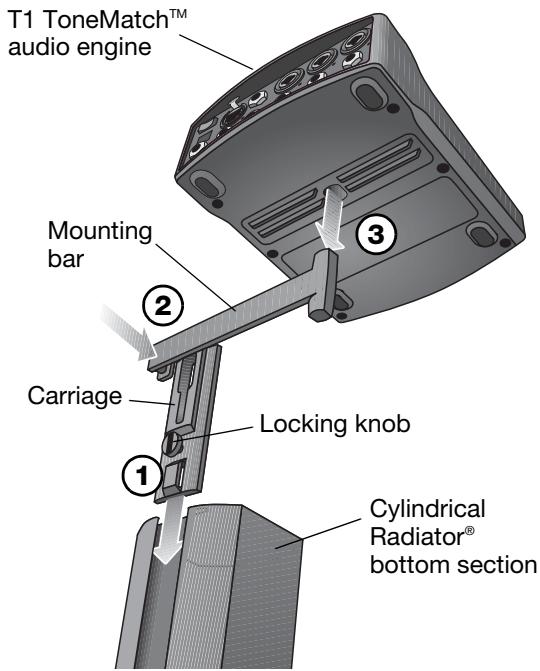
Figure 7 T1 mounted on a Cylindrical Radiator loudspeaker
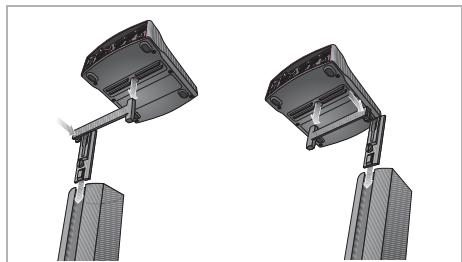
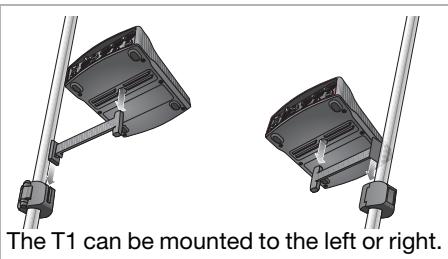
The T1 can be mounted to the left or right.
Mounting the T1 on a microphone stand (optional)
The T1 ToneMatch™ audio engine microphone stand bracket allows you to mount the T1 on the shaft of most microphone stands. For installation help, refer to the Quick Setup Guide that came with the bracket.
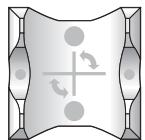
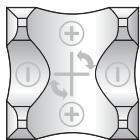
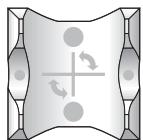
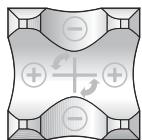
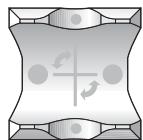
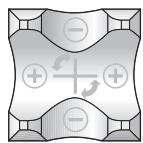
The bracket uses rotatable inserts which, when properly placed, provide a tight fit on the microphone stand shaft. Figure 8 shows insert placements for some common shaft diameters. You may need to arrange these inserts differently for your particular music stand.
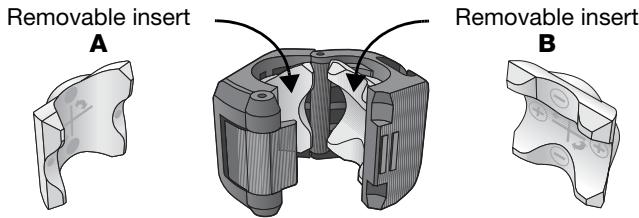
Figure 8 Bracket and insert placements
For 22mm diameter
A
B
For 20.5mm diameter
A
B
For 16mm diameter
A
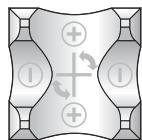
B
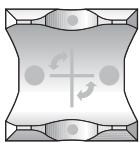
For 14.5mm diameter
A
B
Mounting the T1 on a microphone stand
To install the microphone stand bracket:
- Determine the diameter of the shaft on your microphone stand. The cutouts on the edge of the Microphone Stand Bracket Quick Setup Guide can help you determine the diameter.
- Remove the inserts (Figure 8 on page 9) from the bracket and re-insert them for the diameter you need.
- Attach the microphone stand bracket to the microphone stand (Figure 9).
- Attach the mounting bar to the microphone stand bracket.
- Place the T1 on the mounting bar.
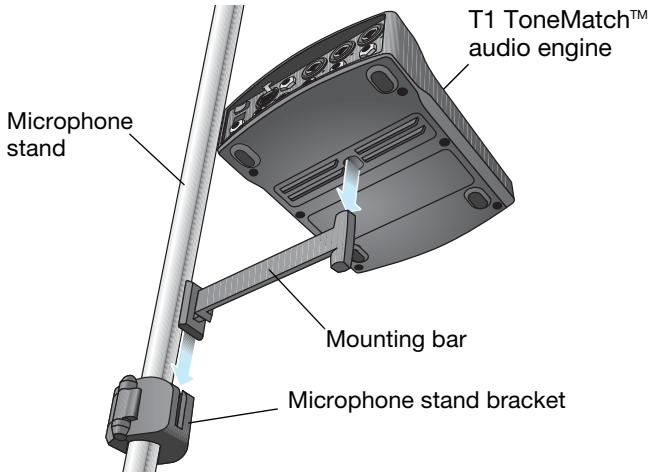
Figure 9
Connecting the T1 to an L1TM model II power stand
- Make sure the power stand Power switch is OFF, the T1 power switch is OFF, and the T1 Master volume control is set to 0.
- Plug one end of the ToneMatch™ cable into the ToneMatch™ port (M) on the T1. Plug the other end of the ToneMatch™ cable into the ToneMatch™ port on the power stand.
- Turn on the T1 audio engine and then turn on the L1 model II power stand.
- Connect your instruments and adjust levels. Refer to "Optimizing input gain and output volume" on page 16.
L1TM model II connections to a T1
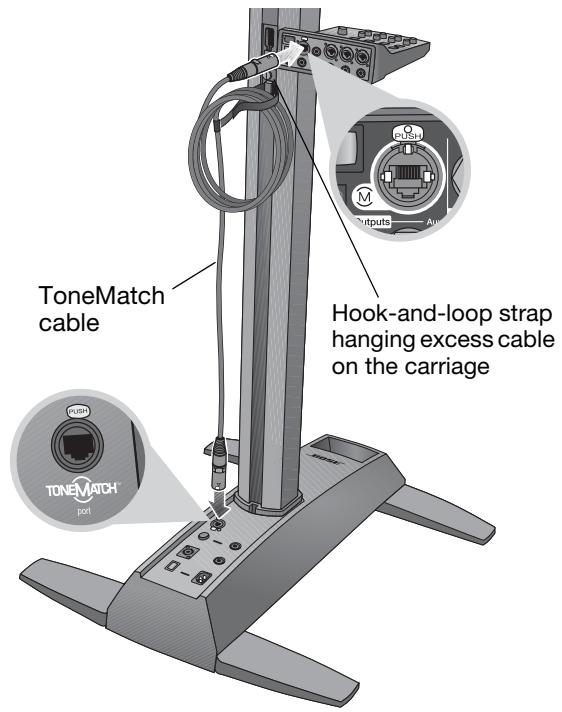
Figure 10
Connecting the T1 to an L1 model I power stand
On an L1™ model I power stand, the Channel 1 and Channel 2 Mic/Line inputs have independent volume, equalization, and ToneMatch™ preset controls that can affect the sound of the T1 audio engine. For this reason, the T1 Master output should be connected to either the Channel 3 or Channel 4 Line IN connectors. The R1 remote control should be disconnected so that the T1 provides the master volume control for the system.
If you want to connect additional sources to the Channel 1 and Channel 2 Mic/Line inputs on the L1 model I power stand, the R1 remote control must be connected. However, the R1 remote control then will control the master volume of the L1 system, not the T1 audio engine.
To connect the T1 (as master volume control) to an L1 model I system:
- Make sure the Power switch on the power stand is in the OFF position and the R1 remote control is disconnected.
- Make sure the T1 power switch is in the OFF position and the T1 audio engine power supply is connected. See "Connecting the T1 ToneMatch™ audio engine power supply (optional)" on page 14 for more details.
- Make sure the T1 Master volume control is set to 0.
- Plug one end of a 14 unbalanced TS audio cable (not supplied) into the T1 Master output port. Plug the other end of the 14 cable into the Channel 3 (or Channel 4) Line IN connector on the L1 power stand.
- Set the Line IN Level control on the power stand to approximately 2.
In some circumstances, you may need to slightly adjust the Line IN Level control from this initial setting to attain the desired gain structure.
- Turn on the T1 audio engine.
- Turn on the L1 model I power stand.
- Connect your instruments and adjust levels. Refer to "Optimizing input gain and output volume" on page 16.
L1TM model I connections to a T1
Figure 11
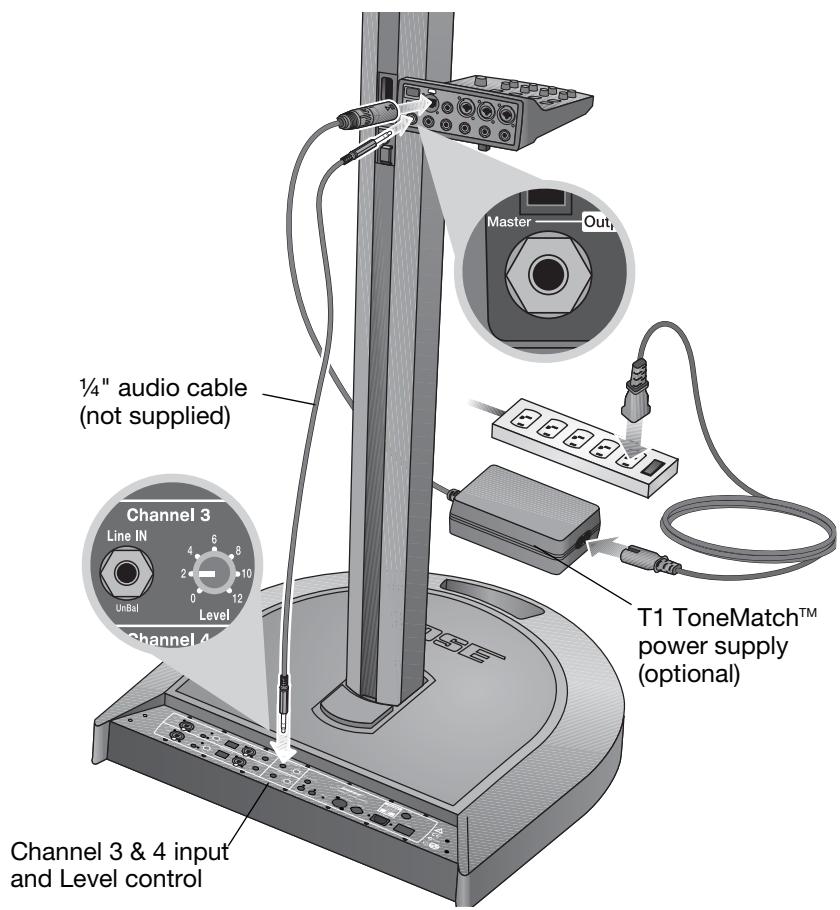
Note: To avoid problems caused by ground loops, connect the power stand and the T1 power supply to the same AC mains circuit.
Connecting the T1 ToneMatch™ audio engine power supply (optional)
The T1 power supply provides power for the T1 audio engine when connecting it to an L1™ model I system or your computer.
- Plug the power supply cable into the T1 ToneMatch™ port.
- Plug one end of the AC power cord into the power supply.
- Plug the other end of the power cord into a live AC (mains) outlet.
- Switch the T1 power switch to the ON position.
T1 power supply connections
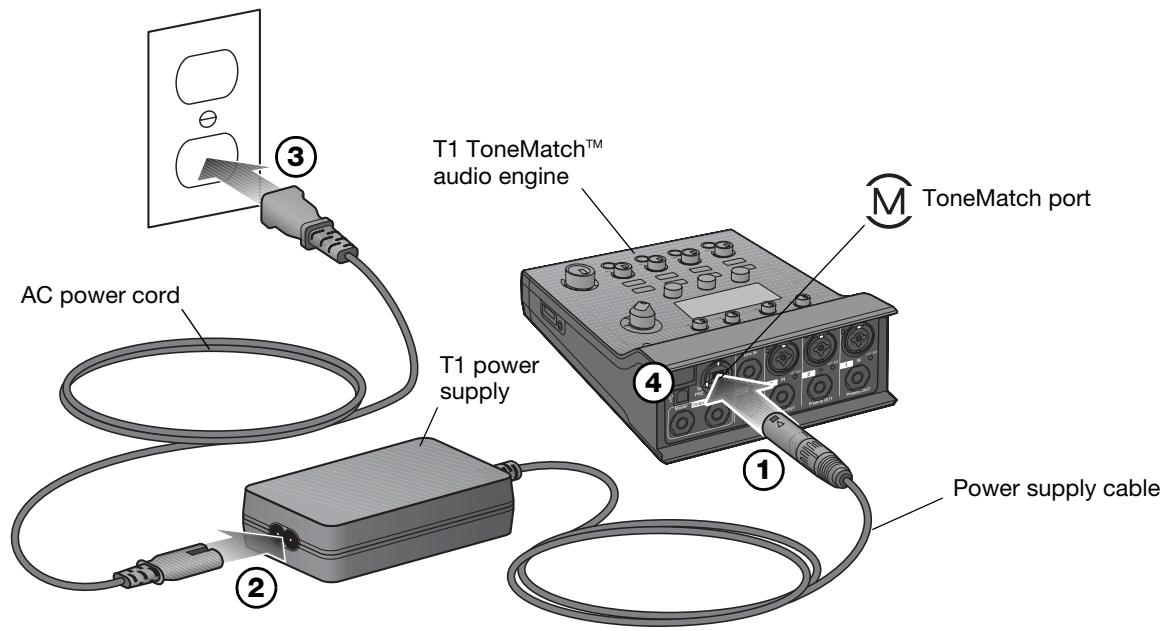
Figure 12
Connecting the T1 to your computer
The T1 provides a USB port for connecting it to a computer. This allows you to download performance scenes to a computer or install system updates. Visit www.Bose.com/musicians for details on updating your system.
When connected to a computer, you also can use the T1 as a general-purpose USB audio device for recording and playback.
Note: The T1 operates at 48kHz/24-bit. When using the T1 with recording software, you may need to configure the software settings for 48kHz/24-bit operation.
Connecting the T1 to your computer requires a USB cable (Type A to Type B, not supplied).
- Connect the T1 audio engine either to your L1 model II system or a T1 power supply (see “Connecting the T1 ToneMatch™ audio engine power supply (optional)” on page 14).
- Plug one end of the USB cable into the T1 audio engine USB port (Figure 13).
- Plug the other end of the USB cable into a USB port on your computer.
- Turn on the T1 audio engine.
T1-to-USB connection
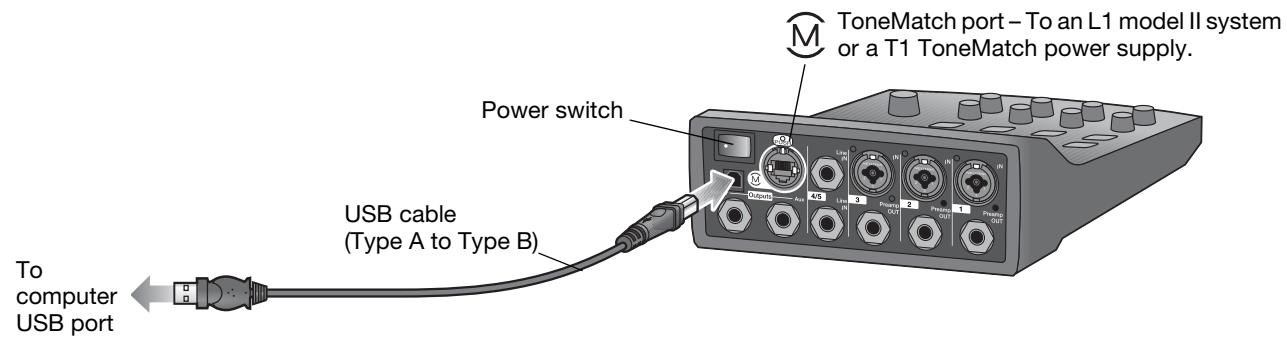
Figure 13
IMPORTANT!
Optimizing input gain and output volume
Getting a quality volume level from your system relies on the combined adjustments of input channel gain, master volume, and channel volume. Do the following for each channel used.
- Make sure the Master volume, Trim, and channel volume controls are set to 0.
- Adjust input channel Trim.

A. If applicable, adjust the volume of your instrument/source to the desired level.
B. Play your instrument/source at a performance level.
C. Slowly turn the Trim control clockwise until the signal/clip indicator glows green or just starts to flash yellow. If the indicator flashes red or glows steady red, turn the Trim control counter-clockwise to decrease the level.
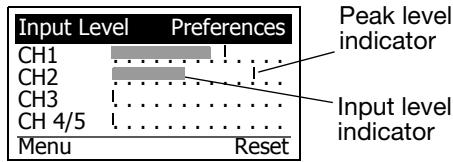
D. Use the input level meters (page 29) in the Prefix menu to check your input levels.
(Example)
Note: If you are using a device that requires phantom power (+48V), such as a condenser microphone, depress the Phantom power switch before adjusting the Trim control.
Note: The input level meter in the Prefs menu can be helpful when adjusting the input Trim level (see page 29).
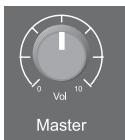
- Set the Master volume control at the 12 o'clock position.
- Slowly turn the channel volume control clockwise until the volume reaches the desired level.
Using the Master volume control
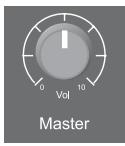
The Master volume control adjusts the overall output level of the T1 ToneMatch™ output ( ) and analog Master output. During normal operation, it is recommended to keep the Master control set at the 12 o'clock position. Once you have set volume levels for all channels, you can adjust the Master volume up or down from this position.
Muting a channel
The Mute buttons silence the audio for the respective channel.
- To mute a channel, press the Mute button once. The Mute button glows bright blue to indicate that the channel is muted.
- Press the Mute button again to unmute the channel. The Mute button dims to indicate that the channel is not muted.
Muting channel effects
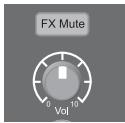
The FX Mute 1-4/5 buttons mutes only the Mod, Delay, and Reverb effects on the respective channel. Muting effects does not bypass ToneMatch presets, zEQ, Para EQ, and Comp/Gate settings.
- To mute effects on a channel, press the FX Mute button once. The FX Mute button glows bright blue to indicate that the channel effects are muted.
- Press the FX Mute button again to unmute the channel effects. The FX Mute button dims to indicate that the channel effects are not muted.
Note: If the T1 rotary selector is set to Mod, Delay, or Reverb, the message “FX Mute is Active” appears on the display.
Reading the T1 display
The display provides you with an interface for operating the audio engine. Figure 14 shows you a sample of display information and the basic operating conventions. The content of the display depends on the T1 rotary selector position.
Sample display and operating conventions
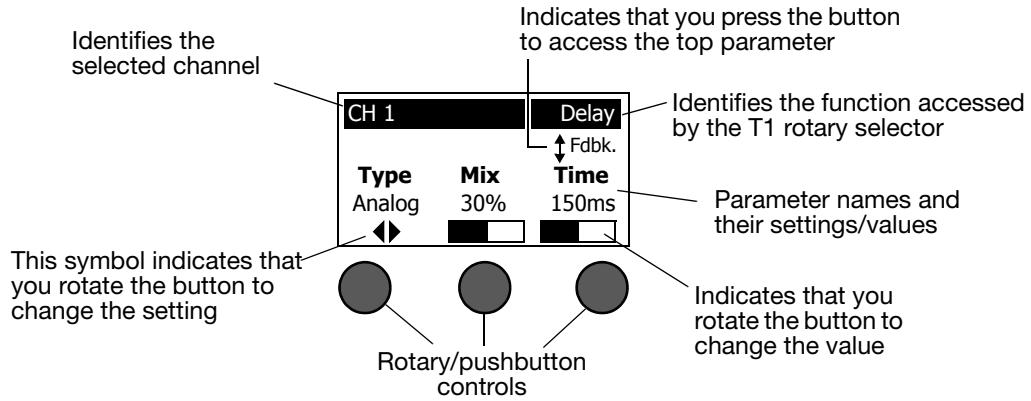
Figure 14
Using the T1 rotary selector
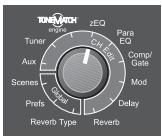
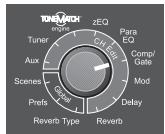
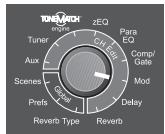
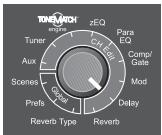
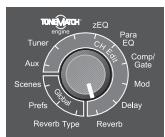
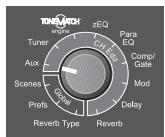
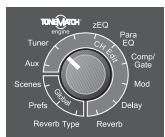
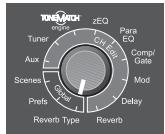
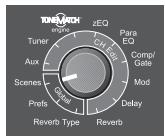
The T1 rotary selector provides access to the functions that shape the sound of the ToneMatch™ audio engine output. Figure 15 provides a summary of the three global functions and the nine channel-related functions. The following pages describe how to adjust each function.
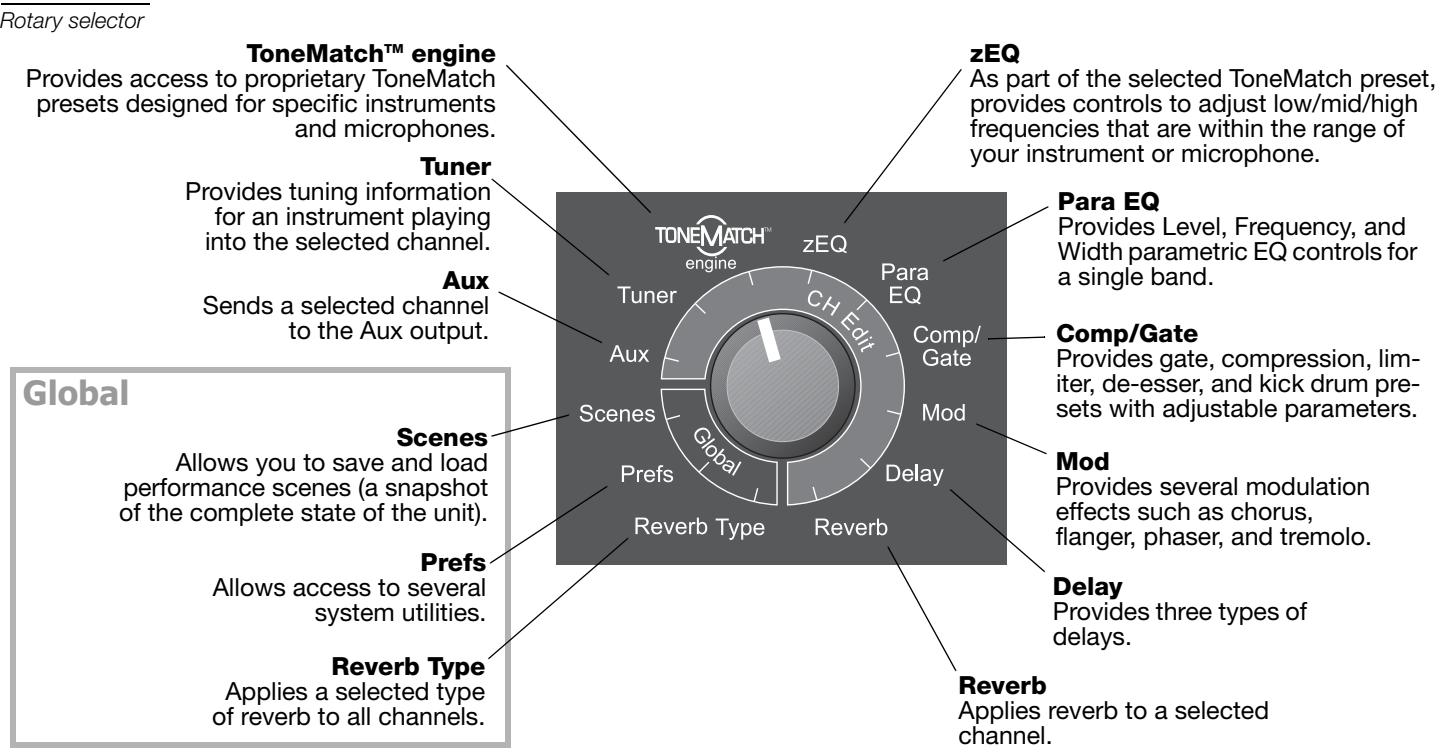
Figure 15
Editing the sound of a channel
The CH Edit functions allow access to settings that affect selected channels. The CH Edit functions are Aux, Tuner, ToneMatch the engine, zEQ, Para EQ, Comp/Gate, Mod, Delay, and Reverb.
To edit a channel:
- Press the CH Edit 1, 2, 3, or 4/5 button. The CH Edit button glows blue, indicating that the channel is enabled for editing.
- Select one of the CH Edit functions using the T1 rotary selector.
- Adjust the settings for that function using the following instructions.
Note: You can only edit one channel at a time. Pressing a CH Edit button enables editing only for the selected channel. All other CH Edit buttons are dimmed to indicate they are inactive.
Selecting a ToneMatch™ preset
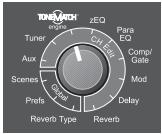
The ToneMatch™ engine function allows you to select a ToneMatch preset for your instrument or microphone. This proprietary technology optimizes system equalization to preserve the natural sound of your specific instrument or microphone. They are organized into categories and independently selected for each channel.
Note: To bypass the selected ToneMatch preset, press the Category button. Press it again to activate.
- Rotate the Category button to access the list of categories and highlight your choice.
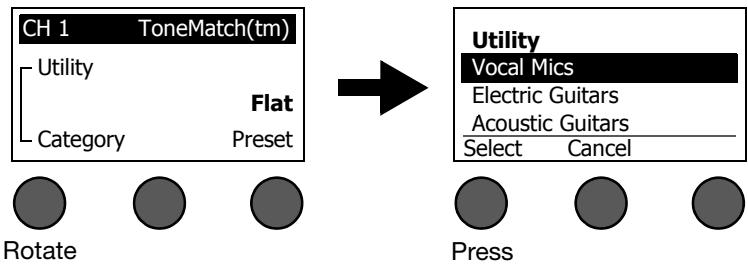
-
Press the Select button to select your choice, or press the Cancel button to exit the list with no change.
-
If you pressed Select, rotate the Preset button to access the list of presets and highlight your choice.
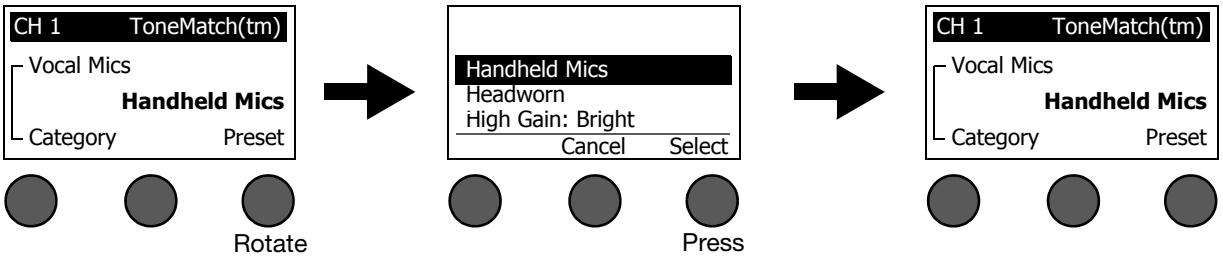
- Press the Select button to select your choice, or press the Cancel button to exit the list with no change.
Adjusting zEQ
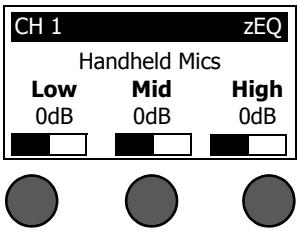
The zEQ function is part of the ToneMatch™ preset technology. It allows you to adjust low/mid/high frequencies that are within the range of your instrument or microphone.
To adjust zEQ, rotate the button under the corresponding frequency band.
Note: To bypass an individual frequency band, press the corresponding button. Press it again to activate.
Adjusting Para EQ
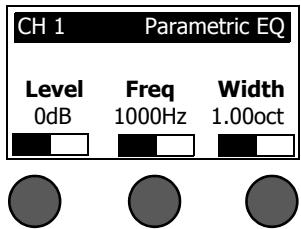
The Para EQ function provides parametric equalization centered on a user-specified frequency within the range of 50Hz to 8000Hz .
Note: To bypass the Para EQ settings, press the Level button. Press it again to activate.
- Rotate the Level button to adjust the boost/cut level from +15 dB to -15 dB.
- Rotate the Freq button to adjust the center frequency from 50 Hz to 8000 Hz.
- Rotate the Width button to adjust the width of the bell curve around the center frequency from 0.20 octave to 5.00 octave.
Using compressor/gate functions
The Comp/Gate function provides access to gate, compression, limiter, de-esser and kick drum presets with adjustable parameters.
Note: To bypass the Comp/Gate settings, press the Type button. Press it again to activate.
- Rotate the Type button to access the list of Comp/Gate effects and highlight your choice:
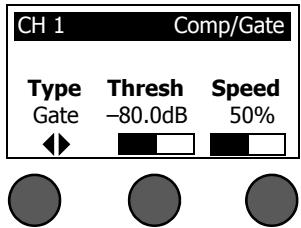
Compressor 1: Light...... Compressor featuring a preset low-compression ratio with variable threshold and gain parameters. Works well as a general-purpose compressor for most instruments and microphones that require minimal level control.
Compressor 1: Medium... Compressor featuring a preset moderate compression ratio with variable threshold and gain parameters. Works well with basses, guitars, keyboards, and vocals requiring subtle level control.
Compressor 1: Heavy...... Compressor featuring a preset high compression ratio with variable threshold and gain parameters. Works well with loud instruments - like horns and drums, as well as strong vocals that require more aggressive level control.
Limiter............ Hard limiter featuring a preset ratio (:1) with variable threshold and gain parameters. Works well with very loud instruments, such as drums, to prevent signal peaks from overloading the channel.
De-Esser Side-chained compressor featuring a preset compression ratio with variable threshold and gain parameters. Designed to reduce sibilance on vocals.
Noise Gate...... Noise gate with a fast preset attack time, variable threshold, and variable speed (release time). Well-suited for eliminating unwanted noise from microphones and instruments.
KickGate 1: Regular...... Gate featuring a preset attack time, and variable threshold and tightness (release time) parameters. This is a Bose proprietary technology designed specifically for kick drums. This robust gate provides maximum gain before feedback, making your kick drum as loud as possible through an L1™ system.
KickGate 2: Fast Same as KickGate 1 - but adjusted for faster tempos. Select this setting if you are using a double bass drum pedal.
- Press the Select button to select your choice, or press the Cancel button to exit the list with no change.
- For Comp1-3, Limiter, De-Ess: Rotate the Thresh button to adjust the input threshold (trigger) level from -50dB to 0dB. Rotate the Gain button to adjust the gain from 0dB to 30.0dB. The gain bar above the button shows the amount of gain reduction. This display helps in setting the threshold.
For Gate: Rotate the Thresh button to adjust the input threshold (trigger) level from -90dB to -30dB. Rotate the Speed button to set the gate closing speed to any value from 0 (fastest) to 100% (slowest).
For Kick1-2: Rotate the Thresh button to adjust the input threshold (trigger) level from -20dB to 0dB. Rotate the Tight button to adjust the tightness (how quickly the gate closes) from 0 (slowest) to 100% (fastest).
Using the KickGate
The KickGate is a Bose® proprietary technology that allows you to raise the level of a kick drum channel while eliminating the risk of feedback from the microphone. Two KickGate settings are available in the Comp/Gate menu.
- Connect the appropriate type of microphone.
- Select an appropriate ToneMatch™ preset.
- Adjust the channel input Trim control so that the hardest kick drum hits turn the input channel LED yellow, but not red.
- Select Comp/Gate with the T1 rotary selector.
- Rotate the Type button to scroll down the list, highlight KickGate 1 or KickGate 2, and press Select. Choose KickGate 2 when using a double bass drum pedal.
- While playing the kick drum, increase the volume to the desired performance level.
- Play the kick drum at the softest level you intend to use in the performance and check that you can hear it.
- While playing softly, increase the Thresh level until some of the kick drum hits get cut off. Then lower the Thresh level by 3dB.
- While playing the kick drum normally, rotate the Tight button counter-clockwise to reduce the tightness and add more "boom" to the sound. Tightness can be adjusted from 0 (slowest) to 100% (fastest).
Using modulation effects
The Mod function allows you to apply modulation effects.
Note: To bypass the Mod settings, press the Type button. Press it again to activate.
- Rotate the Type button to access the list of modulator types and highlight your choice:
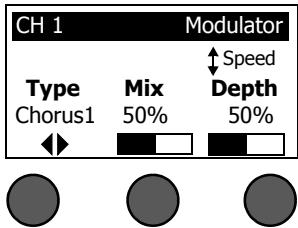
Chorus 1: Brite......Wet, shimmering chorus that works well with acoustic instruments. Includes adjustable mix, depth, and speed parameters.
Chorus 2: Warm...... Similar to Chorus 1, but with a little less high frequencies. Includes adjustable mix, depth, and speed parameters. Works well with electric guitars/basses.
Chorus 3: Dark...... Similar to Chorus 2, but with less high frequencies for a darker tone. Includes adjust-able mix, depth, and speed parameters. Works well with electric guitars/basses.
Flanger 1: Tape...................................... Tape-style flanger with no feedback. Includes adjustable mix, depth, and speed parameters. Works well as an effect on electric guitars/basses.
Flanger 2: Feedback...... Same as Flanger 1, but with preset Feedback effect.
Phaser 1: Stomp......Classic "stompbox"-style phaser. Features a preset wide speed with variable speed and feedback parameters. Works well as an effect on electric guitars/basses and keyboards.
Phaser 2: Rack .... Classic "rack"-style phaser. Features a positive mix type with variable speed and feedback parameters. Works well as an effect on electric guitars/basses and keyboards.
Phaser 3: Warm ......... Vintage-style phaser. Features a positive mix type with variable speed and feedback parameters. Works well as an effect on electric guitars/basses and keyboards.
Phaser 4: Bright...... Phaser with no bass. Features a positive mix type with variable speed and feedback parameters. Works well as an effect on electric guitars and keyboards.
Tremolo. Vintage-style tremolo effect with variable speed and depth parameters. Works well as an effect on guitars, keyboards, and harmonica.
- Press the Select button to select your choice, or press the Cancel button to exit the list with no change.
- For Chorus1-3 and Flanger1-2: Rotate the Mix button to adjust the desired mix of dry signal to wet signal (modulator-processed). Rotate the Depth button to adjust how much the pitch varies from the original input signal. Press the Depth button to access the Speed parameter. Rotate the Speed button to adjust how quickly the pitch modulates.
For Phaser1-4: Rotate the Speed button to adjust how quickly the pitch modulates. Rotate the Fdbk. button to adjust how much the modulation reverberates.
For Tremolo: Rotate the Speed button to adjust how quickly the volume modulates. Rotate the Depth button to adjust how much the volume varies from the original input signal.
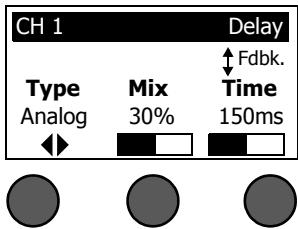
Adding delays
The Delay function allows you to apply a digital-, analog-, or tape-style delay.
Note: To bypass the Delay settings, press the Type button. Press it again to activate.
- Rotate the Type button to access the list of Delay types and highlight your choice.
Digital Delay.....Straight digital delay effect where the repeats remain uncolored. Features adjustable mix, time, and feedback parameters. Works well with guitars, drums, and vocals.
Analog Delay......Classic analog delay effect where the repeats continuously deteriorate. Features adjustable mix, time, and feedback parameters. Works well with guitars, drums, and vocals.
Tape Delay.......Vantage-style tape delay effect where the repeats deteriorate even more than Analog Delay. Well-suited for guitars, horns, harmonica, and vocals.
- Press the Select button to select your choice, or press the Cancel button to exit the list with no change.
- Rotate the Mix button to set the desired mix of dry signal to wet signal (delayed).
- Rotate the Time button to adjust the amount of the delay time.
- Press the Time button to access the Fdbk. setting. Rotate the Fdbk. button to adjust the amount of delay feedback.
Adding reverb
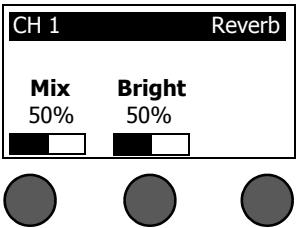
The Reverb function applies a user-adjustable amount of reverb to the selected channel. To select the type of reverb, see "Selecting a type of reverb" on page 27.
Note: To bypass the Reverb effects, press the Mix button. Press it again to activate.
- Rotate the Mix button to adjust the desired mix of dry signal to wet signal (reverb-processed).
- Rotate the Bright button to equalize the high frequencies of reverb applied to the selected channel.
Routing input signals to the Aux output
The Aux function allows you to route signals from one of three tap points to the Aux output for various signal processing, recording, and sound reinforcement applications. The signal level is adjustable for each of the three available tap points:
Note: To mute the Aux output, press the Level button. Press it again to unmute.
- Rotate the Level button to adjust the signal level of the selected channel.
- Rotate the Tap button to scroll through the tap menu and highlight the desired tap point.

Dry: After Preamp.... The completely dry (no processing) signal is routed directly from the preamp stage.
Pre: With EQ & FX...... The signal is routed from the preamp stage with applied processing.
Post: After Fader...... The signal is routed after the Channel volume control with applied processing.
- Press the Select button to select the tap point, or press the Cancel button to exit with no change. The name of the currently selected tap point appears in bold type.
Using the tuner
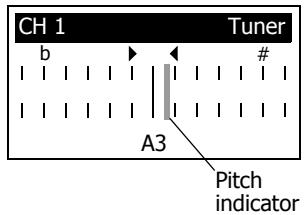
An independent tuner is available on each input channel. The display indicates the note being played at the bottom of the screen. As you tune, a pitch indicator appears on the display, showing you whether the note is sharp or flat. Adjust the pitch of your instrument so the cursor aligns itself with the center of the screen.
Note: For silent tuning, press the Mute button for the applicable channel.
Using global functions
The Global functions allow access to settings that affect the overall operation of the audio engine and all of its channels. The Global functions are Scenes, Defaults, and Reverb Type.
Selecting a type of reverb
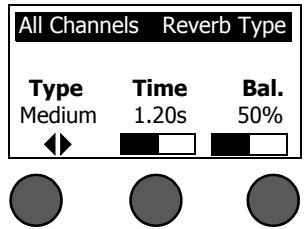
The Reverb Type function allows you to select the type of reverb that is applied to all input channels. The decay time (Time) and balance (Bal) are adjustable. Balance controls the ratio of early-to-late reflections.
- Select Reverb Type with the T1 rotary selector.
- Press the Type button to display the list of reverbs:
Plate............ Creates the ambience of a typical studio plate reverb. Features adjustable time and balance (ratio of early/later reflections) parameters. Works well with guitars, horns, percussion instruments, and vocals.
Small......Creates the ambience of a small-sized space. Features adjustable time and balance (ratio of early/later reflections) parameters. Works well with guitars, horns, percussion instruments, and vocals.
Medium...... Creates the ambience of a medium-sized space. Features adjustable time and balance (ratio of early/later reflections) parameters. Works well with guitars, horns, percussion instruments, and vocals.
Large......Creates the ambience of a large-sized space. Features adjustable time and balance (ratio of early/later reflections) parameters. Works well with guitars, horns, percussion instruments, and vocals.
Cavern ....... Creates the ambience of an extremely large space. Features adjustable time and balance (ratio of early/later reflections) parameters. A unique and interesting reverb effect.
- Rotate the Type button to scroll through the reverb list and highlight the desired reverb type.
- Press the Type button to select.
- Rotate the Time button to adjust the reverb decay time to any value from 0.20s to 9.99s.
- Rotate the Bal. button to adjust the early-to-late reflection ratio (0% = all early reflections, 100% = all late reflections).
Using the Prefix utilities
The Prefix function allows access to several system utilities.
- Select Prefix with the T1 rotary selector.
-
Rotate the Menu button to scroll through the list and highlight the desired utility. Press the Select button to display the utility:
-
Status - Displays the effects assigned to input channels (viewable only).
| Status | Preferences | ||
| CH1 | Cmp | Mod | Rev |
| CH2 | Cmp | Mod | Rev |
| CH3 | Mod Dly | ||
| CH 4/5 | Rev | ||
| Menu | |||


Cmp = Compressor/Gate
Mod = Modulation
Dly = Delay
Rev = Reverb
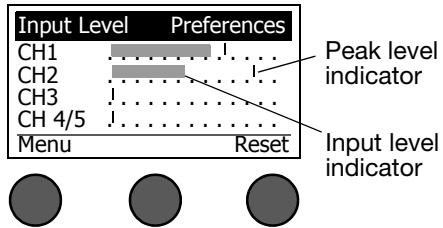
- Input Level - Displays input level meters with peak signal indicators for all input channels. Press the Reset button to reset all peak signal indicators. This display is helpful in setting the channel input trim level (see "Optimizing input gain and output volume" on page 16).
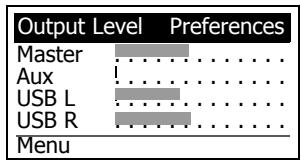
- Output Level - Displays output level meters for all outputs - Master, Aux, USB L (left), and USB R (right).

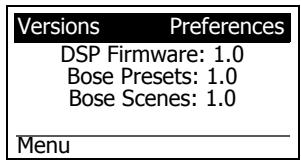
- Versions - Displays revision levels of DSP Firmware, Bose Presets, and Bose Scenes (viewable only).

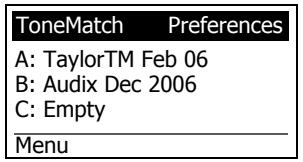
- ToneMatch™ - Displays the list of ToneMatch™ preset banks stored in the T1. Refer to www.Bose.com/ musicians for the latest preset banks.

- Power Stand - When connected to an L1™ model II power stand, connected appears on the screen.
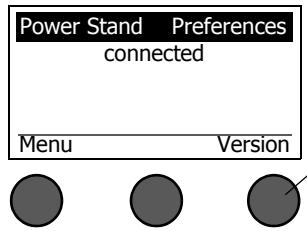
Pressing the Version button displays the version number of the power stand and system EQ firmware.
- USB to PC - Allows you to send a selected source to your computer through USB left and right output channels. The source choices are Ch1, Ch2, Ch3, Ch4/5, Master, or Aux. All channel sources supply post-volume control signals with all processing except reverb.
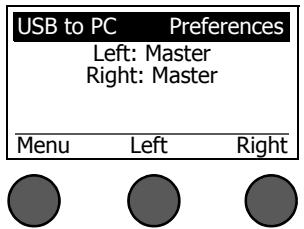
- Rotate the Left/Right button to highlight a source: Ch1, Ch2, Ch3, Ch4/5, Master, or Aux.
- Press the Select button to select the source, or press the Cancel button to exit with no change.
-
Press Menu to return to the Prefix menu list.
-
USB from PC - Allows you to send USB left and right channels from your computer to a selected audio engine destination (Off, Ch4/5, or Master). If the destination is Ch4/5, the USB audio is inserted into channels 4/5 directly after the trim control and can be fully processed. The channel 4/5 analog inputs remain operational.
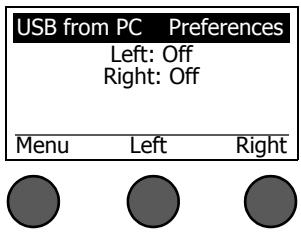
- Rotate the Left/Right button to highlight a destination: Off, Ch4/5, or Master.
- Press the Select button to select the destination, or press the Cancel button to exit with no change.
-
Press Menu to return to the Prefix menu list.
-
Master Out - Allows you to configure the Master output as a pre- or post-master volume control output.
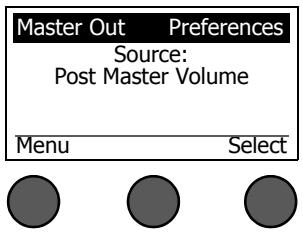
- Rotate the Select button to highlight your choice: Post Master Volume or Pre Master Volume.
- Press the Select button to select the setting, or press the Cancel button to exit with no change.
- Press the Menu button to return to the Prefs menu list.
Loading and saving scenes
A scene is a snapshot of the state of the T1 ToneMatch™ audio engine.
- A scene remembers all ToneMatch audio engine settings, and the status of the Mute, FX Mute, and CH EDIT buttons.
- A scene does not remember channel trim and channel volume levels, Master volume level, or the Phantom power switch position.
The T1 includes three types of scenes:
(5) Bose scenes: Read-only factory-preset scenes. You cannot edit and write over them.
(10) My Scenes: User-definable scenes for saving and recalling all your favorite settings. You can update these scenes by writing over them as many times as you want.
(1) Shared Scene: A user-definable scene for saving settings you want to share with other T1 ToneMatch audio engine users. This scene can be uploaded to a computer using the L1™ updater software available at www.Bose.com/musicians.
To load a scene:
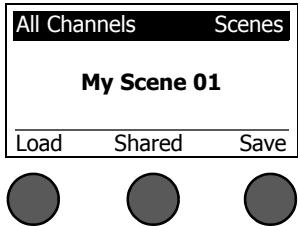
- Select Scenes with the T1 rotary selector.
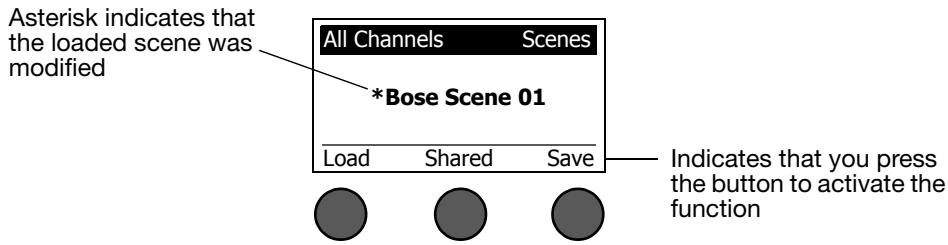
- Rotate the Load button clockwise to scroll through the scenes list and highlight the desired scene name. The name of the currently loaded scene appears in bold type.
- Press the Select button to select the scene, or press the Cancel button to exit the list and leave the setting unchanged.
Note: The display returns to the Scenes screen if you do not press the Select or Cancel button within 15 seconds. No change is made and the currently loaded scene appears on the screen.
4. If you pressed Select, the question "Are you sure?" is displayed. Press the Yes button to load the scene, or press the No button to exit and leave the scene setting unchanged.
Note: The display returns to the Scenes screen if you do not press the Yes or No button within 15 seconds. No change is made and the currently loaded scene appears on the screen.
To save a scene:
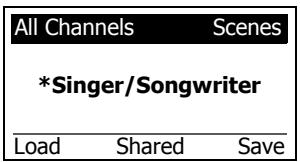
- Select Scenes with the T1 rotary selector. The currently loaded scene is displayed.
example)


- Rotate the Save button to highlight the scene you wish to save. Press Select, or press Cancel to exit the list.
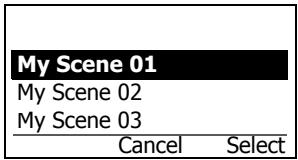
Note: The display returns to the Scenes screen if you do not press the Select or Cancel button within 15 seconds. No change occurs, and the currently loaded scene appears on the screen.


- If you pressed Select, use the Rename screen to edit the scene name, or press Save to use the name as displayed and go to Step 4.
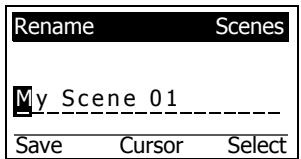


To change the scene name before saving:
You can use the following editing options to change the scene name. After changing the name, press the Save button and go to Step 4.
- Select and change characters: While the Rename screen is displayed, rotate the Cursor button to highlight the character or character position you want to change. Then rotate the Select button to change the character.
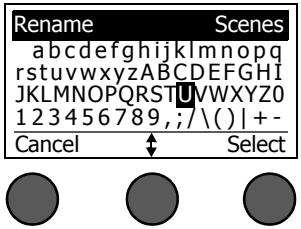
- Use the character map: While the Rename screen is displayed, rotate the Cursor button to highlight the character you want to change. Then press the Select button to view the character map. Rotate the Select button to move the cursor left or right. Rotate the up/down (middle) button to move the cursor up or down. When the character you want is highlighted, press Select to write that character in the selected position.
- Use clear, insert, and delete functions: While the Rename screen is displayed, rotate the Cursor button to position the cursor. Then press the Cursor button for a menu of special editing functions. Rotate the Select button to highlight the function you want. Then press the Select button to perform the function.
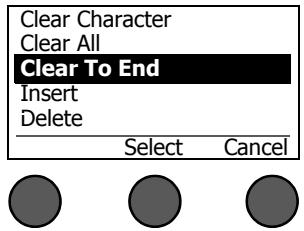
Clear Character ... Removes the character highlighted by the cursor and leaves a blank space.
Clear All ....... Casks the entire line of text.
Clear to End.....C clears all text to the right of the cursor including the highlighted character.
Insert.............. Inserts a blank space to the left of the highlighted character.
Delete ........ Removes the character and space highlighted by the cursor.
- When the question "Are you sure?" is displayed, press the Yes button to save the scene, or press the No button to exit without saving the scene.
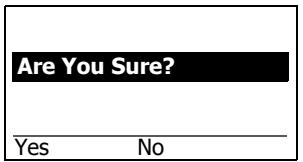
Note: The display returns to the Scenes screen if you do not press the Yes or No button within 15 seconds. No change occurs, and the currently loaded scene appears on the screen.
Sharing a scene
If you create a scene that you would like to share with another T1 ToneMatch™ audio engine user, you can save that scene as a Shared Scene. Using the L1™ updater, you can download the Shared Scene to your computer and then transfer the file to the computer of another T1 user. The other T1 user can upload the scene to their T1 using the L1 updater. The L1 updater is available at www.Bose.com/musicians.
To save a Shared Scene:
- Load the scene that you want to share (see "To load a scene" on page 32).
- Press the Save button to access the list of scenes.
- Rotate the Select button to scroll through the scene list and highlight [To Shared Scene]. Press Select or press Cancel to exit the list.
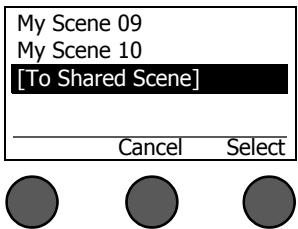
Note: The display returns to the Scenes screen if you do not press the Select or Cancel button within 15 seconds. No change occurs, and the currently loaded scene appears on the screen.
- If you pressed Select, use the Rename screen to edit the scene name (see “To change the scene name before saving” on page 34) or go to Step 5 if you want to use the existing name.
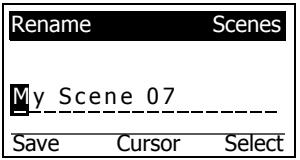


- Press the Save button to store the scene as a Shared Scene.
- When the question "Are you sure?" is displayed, press the Yes button to save the scene, or press the No button to exit without saving the scene as a Shared Scene.
Note: The display returns to the Scenes screen if you do not press the Yes or No button within 15 seconds. No change occurs, and the currently loaded scene appears on the screen.
7. Press the Shared button to confirm the scene saved as a Shared Scene.
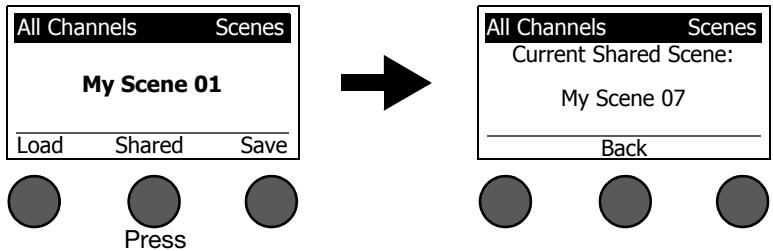
Note: The T1 provides only one storage location for a Shared Scene. Saving a scene as a Shared Scene always overwrites the previously saved Shared Scene.
Please visit www.Bose.com/musicians for details on using the L1™ updater application for downloading and uploading scenes to and from your computer.
Bose scenes
The five Bose scenes are provided as examples for you to use as a starting point. After loading a Bose scene, you can modify the settings and then save the settings as a My Scene or Shared Scene.
Factory Settings
This scene restores the T1 audio engine to the settings it had when it left the factory. Loading this scene erases any changes you previously made to the currently loaded scene.
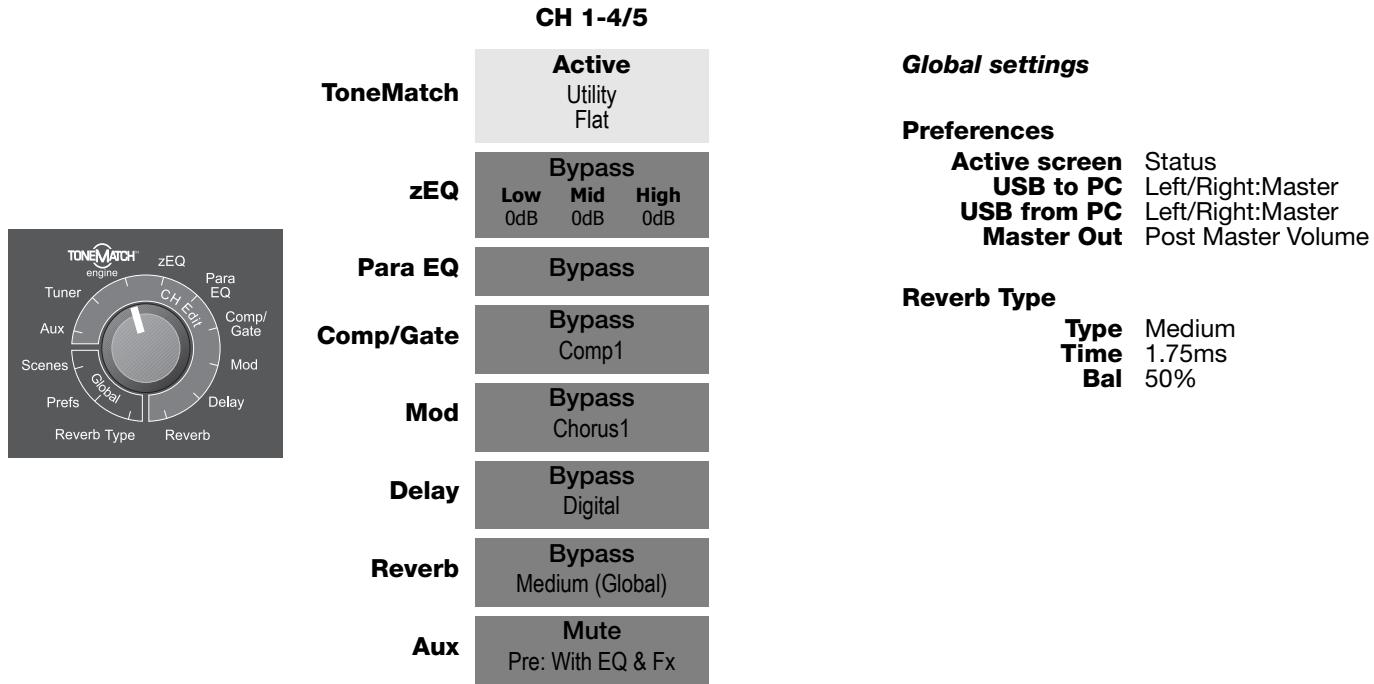
Note: For a list of the factory settings for all effects, see "Factory Settings" on page 46.
Singer/Songwriter
This scene is designed for a singer/songwriter playing keyboard or guitar and sometimes accompanied by an MP3 track.
Example setup for Singer/ Songwriter
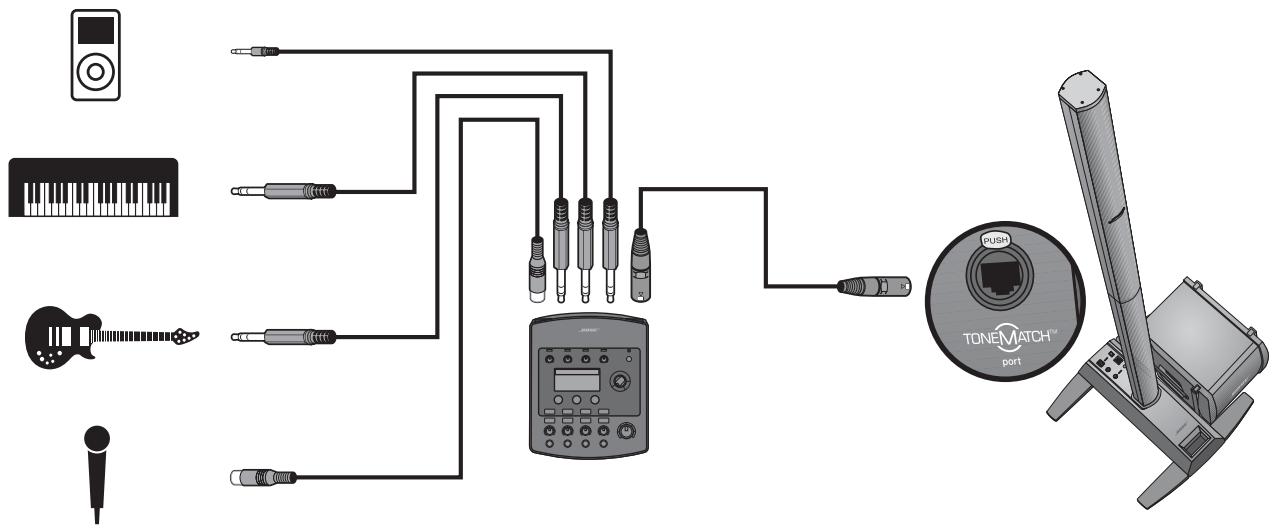
Figure 16
Singer/Songwriter scene channel settings
| ToneMatch | Microphone CH 1 | Guitar CH 2 | Keyboard CH 3 | MP3 Player CH 4/5 | |||||||||
| Active Vocal Mics Handheld Mics | Active Acoustic Guitars Steel String w/piezo | Active Keyboards General Keys | Active DJ/Playback Flat, zEQ Controls | ||||||||||
| zEQ | Active Low 0dB | Mid 0dB | High 0dB | Active Low 0dB | Mid 0dB | High 0dB | Active Low 0dB | Mid 0dB | High 0dB | Active Low 0dB | Mid 0dB | High 0dB | |
| Para EQ | Bypass | Bypass | Bypass | Bypass | |||||||||
| Comp/Gate | Bypass Gate | Bypass Comp2 | Bypass Comp2 | Bypass Limit | |||||||||
| Mod | Bypass Chorus1 | Active Chorus1 | Bypass Chorus3 | Bypass Chorus1 | |||||||||
| Delay | Bypass Digital | Bypass Digital | Bypass Digital | Bypass Digital | |||||||||
| Reverb | Active Medium (Global) | Active Medium (Global) | Bypass Medium (Global) | Bypass Medium (Global) | |||||||||
| Aux | Mute Pre: With EQ & Fx | Mute Pre: With EQ & Fx | Mute Pre: With EQ & Fx | Mute Pre: With EQ & Fx | |||||||||
Global settings
Preferences
Active screen Status
USB to PC Left/Right:Master
USB from PC Left/Right:Master
Master Out Post Master Volume
Reverb Type
Type Medium
Time 1.75ms
Bal 50%
DJ/Playback
The DJ/Playback scene is designed for a DJ event or any audio playback need. This setup uses two microphones and either an MP3 player, mixer, or laptop computer.
Example setup for DJ/Playback
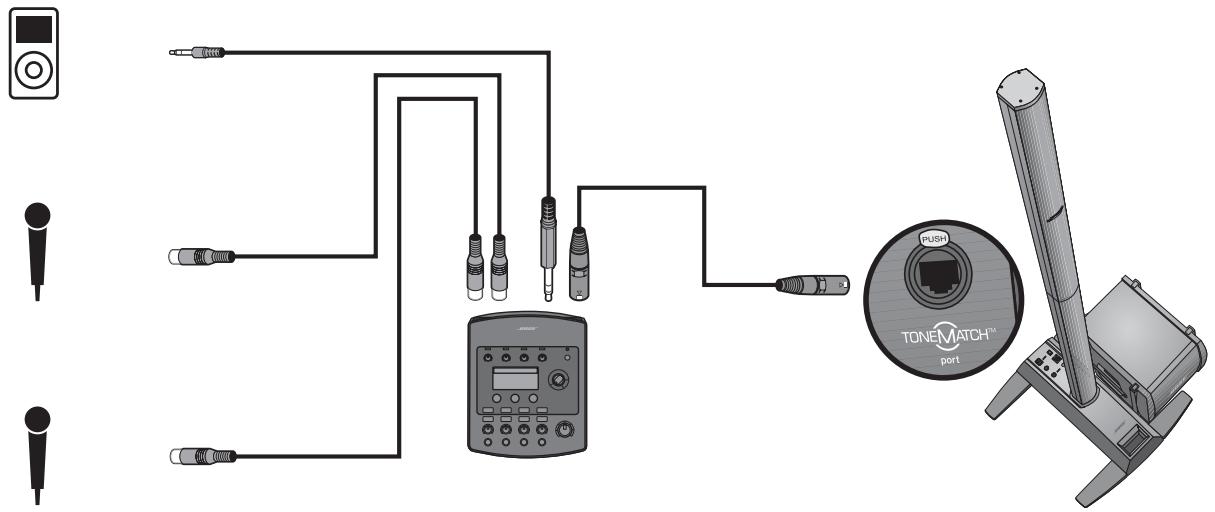
Figure 17
DJ/Playback scene channel settings
| ToneMatch | Microphone CH 1 | Microphone CH 2 | Not Used CH 3 | MP3 Player CH 4/5 | |||||||||
| Active Vocal Mics Handheld Mics | Active Vocal Mics Handheld Mics | Active Utility Flat | Active DJ/Playback Flat, zEQ Controls | ||||||||||
| zEQ | Active Low 0dB | Mid 0dB | High 0dB | Active Low 0dB | Mid 0dB | High 0dB | Active Low 0dB | Mid 0dB | High 0dB | Active Low 0dB | Mid 0dB | High 0dB | |
| Para EQ | Bypass | Bypass | Bypass | Bypass | |||||||||
| Comp/Gate | Bypass Comp1 | Bypass Comp1 | Bypass Comp1 | Bypass Limit | |||||||||
| Mod | Bypass Chorus1 | Bypass Chorus1 | Bypass Chorus1 | Bypass Chorus1 | |||||||||
| Delay | Bypass Digital | Bypass Digital | Bypass Digital | Bypass Digital | |||||||||
| Reverb | Bypass Medium (Global) | Bypass Medium (Global) | Bypass Medium (Global) | Bypass Medium (Global) | |||||||||
| Aux | Mute Pre: With EQ & Fx | Mute Pre: With EQ & Fx | Mute Pre: With EQ & Fx | Mute Pre: With EQ & Fx | |||||||||
Global settings
Preferences
Active screen Status
USB to PC Left/Right:Master
USB from PC Left/Right:Master
Master Out Post Master Volume
Reverb Type
Type Medium
Time 1.75ms
Bal 50%
Drums and Bass
This scene is set up for a bass guitar, drum kit, and an MP3 player.
Example setup for Drums and Bass
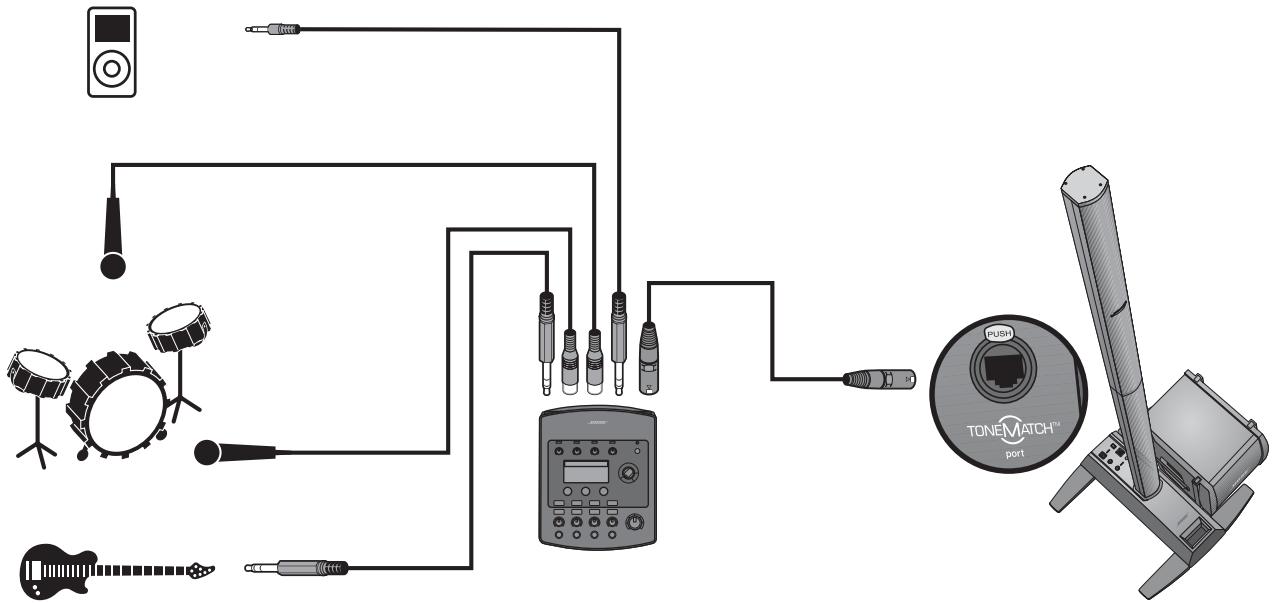
Figure 18
Drums and Bass scene channel settings
| ToneMatch | Bass Guitar CH 1 | Kick Drum CH 2 | Overhead CH 3 | MP3 Player CH 4/5 | |||||||||
| Active Basses Active Bass 1 | Active Percussion Kick, General | Active Percussion General Overhead | Active DJ/Playback Flat, zEQ Controls | ||||||||||
| zEQ | Active Low 0dB | Mid 0dB | High 0dB | Active Low 0dB | Mid 0dB | High 0dB | Active Low 0dB | Mid 0dB | High 0dB | Active Low 0dB | Mid 0dB | High 0dB | |
| Para EQ | Bypass | Bypass | Bypass | Bypass | |||||||||
| Comp/Gate | Bypass Comp2 | Active Kick1 | Bypass Comp1 | Bypass Limit | |||||||||
| Mod | Bypass Chorus1 | Bypass Chorus1 | Bypass Chorus1 | Bypass Chorus1 | |||||||||
| Delay | Bypass Digital | Bypass Digital | Bypass Digital | Bypass Digital | |||||||||
| Reverb | Bypass Medium (Global) | Bypass Medium (Global) | Bypass Medium (Global) | Bypass Medium (Global) | |||||||||
| Aux | Mute Pre: With EQ & Fx | Mute Pre: With EQ & Fx | Mute Pre: With EQ & Fx | Mute Pre: With EQ & Fx | |||||||||
Global settings
Preferences
Active screen Status
USB to PC Left/Right:Master
USB from PC Left/Right:Master
Master Out Post Master Volume
Reverb Type
Type Medium
Time 1.75ms
Bal 50%
The Works scene
The Works scene is designed for electric and acoustic guitars, bass guitar, and keyboard.
Example setup for The Works
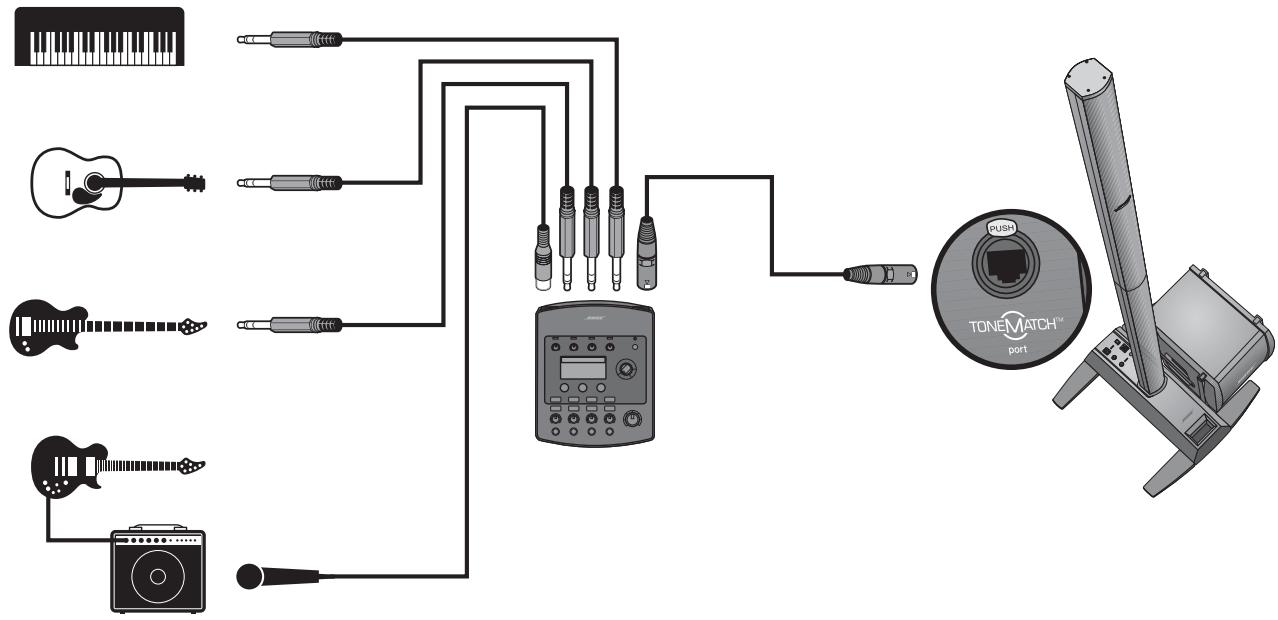
Figure 19
The Works scene channel settings
| ToneMatch | Active Electric Guitars Miked Amp w/SM57 | Active Basses Active Bass 3 | Active Acoustic Guitars Steel String w/piezo | Active Keyboards General Keys | |||||
| zEQ | Active Low 0dB | High 0dB | Active Low 0dB | High 0dB | Active Low 0dB | High 0dB | Active Low 0dB | High 0dB | |
| Para EQ | Bypass | Bypass | Bypass | Bypass | |||||
| Comp/Gate | Active Comp1 | Active Comp2 | Bypass Comp1 | Bypass Limit | |||||
| Mod | Active Flange2 | Active Phaser2 | Active Chorus1 | Bypass Chorus1 | |||||
| Delay | Bypass Digital | Bypass Digital | Active Tape | Bypass Tape | |||||
| Reverb | Active Medium (Global) | Active Medium (Global) | Bypass Medium (Global) | Active Medium (Global) | |||||
| Aux | Bypass Pre: With EQ & Fx | Bypass Pre: With EQ & Fx | Bypass Pre: With EQ & Fx | Bypass Pre: With EQ & Fx | |||||
Global settings
Preferences
Active screen Status
USB to PC Left/Right:Master
USB from PC Left/Right:Master
Master Out Post Master Volume
Reverb Type
Type Medium
Time 1.75ms
Bal 50%
This section describes the settings in the T1 audio engine when it left the factory. To restore your T1 at any time to these factory settings, load Bose® Factory Settings scene.
Comp/Gate factory settings
| Type | Thresh | Gain |
| Compressor 1: Light | -16.0dB | 3.0dB |
| Compressor 2: Medium | -16.0dB | 5.0dB |
| Compressor 3: Heavy | -16.0dB | 8.0dB |
| Limiter | -10.0dB | 0dB |
| De-Esser | -10.0dB | 0dB |
| Thresh | Speed | |
| Noise Gate | -70.0dB | 50% |
| Thresh | Tight | |
| KickGate1: Regular | -20.0dB | 100% |
| KickGate2: Fast | -20.0dB | 100% |
Modulator factory settings
| Type | Mix | Depth | Speed |
| Chorus 1: Brite | 50% | 50% | 0.50Hz |
| Chorus 2: Warm | 70% | 100% | 0.15Hz |
| Chorus 3: Dark | 25% | 25% | 3.0Hz |
| Flanger 1: Tape | 50% | 50% | 1.00Hz |
| Flanger 2: Feedback | 50% | 100% | 2.00Hz |
| Speed | Feedback | ||
| Phaser 1: Stomp | 0.50Hz | 0% | |
| Phaser 1: Rack | 0.50Hz | -75% | |
| Phaser 1: Warm | 1.00Hz | -26% | |
| Phaser 1: Bright | 0.50Hz | -76% | |
| Speed | Depth | ||
| Tremolo | 5.00Hz | 50% |
Delay factory settings
| Type | Mix | Time | Feedback |
| Digital | 30% | 150ms | 30% |
| Analog | 30% | 275ms | 20% |
| Tape | 30% | 350ms | 30% |
Reverb Type factory settings
| Type | Time | Bal. |
| Plate | 1.20s | 50% |
| Small | 1.00s | 50% |
| Medium | 1.75s | 50% |
| Large | 2.20s | 50% |
| Cavern | 5.00s | 50% |
Cleaning
- You may clean the product enclosure using only a soft dry cloth.
- Do not use any solvents, chemicals, or cleaning solutions containing alcohol, ammonia, or abrasives.
- Do not use any sprays near the product or allow liquids to spill into any openings.
Limited Warranty and Registration
Your T1 ToneMatch™ audio engine is covered by a limited transferable warranty. Details of the warranty are provided with your product. Register your products online at www.Bose.com/register or call (800) 905-1044. Failure to do so will not affect your warranty rights.
Accessories
The following accessories are available for the T1 ToneMatch audio engine.
T1 ToneMatch audio engine power supply
T1 ToneMatch microphone stand bracket
For more information, visit www.Bose.com/musicians, or call (800) 905-0886.
Troubleshooting
If you experience problems while using this product, try the solutions in the following table. If you still can't solve the problem, please call the Bose® Live Music Product and Technical Support Team direct at (877) 335-2673 to arrange for service.
| Problem | What to do |
| T1 is plugged in, power switch is on, but no power. | ·Make sure you have power at the AC outlet. Try operating a lamp or other equipment from the same AC outlet or test the outlet using an AC outlet tester. If using the T1 with an L1TM model II system: ·Make sure the ToneMatch™ cable is properly connected to the audio engine and the L1 power stand. ·Verify that the power cord plug is fully inserted into the power stand and the AC (mains) outlet. ·Make sure the L1 power stand is turned on and the power LED is blue. If using the T1 with an L1 model I system: ·Make sure the audio engine is properly connected to the T1 audio engine power supply. ·Verify that the plug of the T1 audio engine power supply power cord is fully inserted into the AC outlet. ·If available, try a different T1 audio engine power supply. |
| T1 is on, but there is no sound. | ·Make sure the Master volume control is turned up. ·Verify that the input channel(s) you want to hear is not muted. ·Check that the Volume control is turned up for the channel you want to hear. ·Make sure the appropriate input channel Trim control has been turned up enough so that the green LED is on (indicating that there is a strong input signal). ·Check the Prefs (Preference) Input and Output level meters to confirm that there is a signal at both the input and output stages. ·Make sure volume control is turned up on your input source (instrument). ·Connect your input source (instrument) to the audio engine using a different cable. ·Plug your input source (instrument) directly into the L1TM power stand or a different amplifier to make sure the source is working. ·Turn the audio engine off and wait 30 seconds. Then turn unit on again. |
| T1 is on, but there is no sound - Continued. | If using the T1 with an L1 model II system: • Turn off the power stand, re-seat the ToneMatch™ cable plug in the ToneMatch port, and turn on the power stand again. • If available, try a different ToneMatch cable. If another ToneMatch cable is not available, try a standard ethernet cable. • Connect the T1 Master output to the Analog Input on the power stand using a ¼" phone plug cable. Turn up the power stand Trim control, and verify that you hear sound. • Make sure power LED on power stand is blue. If LED is red, please call Bose Live Music Customer Support at (877) 335-2673 for assistance. If using the T1 with an L1 model I system: • Make sure the T1 Master output is connected to the Channel 3 or 4 Line IN on the power stand. Turn up the power stand Channel 3/4 line input Level and verify that the system is producing sound. • If using the R1 remote control with the system, make sure the R1 Master volume is turned up. • Make sure power LED on power stand is green. If LED is red, please call Bose Live Music Customer Support at (877) 335-2673 for assistance. |
| Poor quality sound from a microphone or instrument connected to the T1. | • Make sure there is no unwanted zEQ or Para EQ equalization applied. • Verify that you have selected an appropriate ToneMatch™ engine preset for your microphone/instrument. If you do not want to use a ToneMatch engine preset, make sure ToneMatch is set to Flat. • Make sure there are no unwanted effects (Comp/Gate, Mod, Delay, Reverb) on your input channel. Check the Status in the Params menu for any currently active effects. • Check that the T1 input Trim is adjusted properly for your microphone/instrument. The signal LED should be green; if the LED is red, lower the Trim level until it is green. • Try a different microphone or instrument cable. • Check the cable connecting your microphone or instrument to the T1 audio engine. Make sure the cable plug is fully inserted into the microphone/instrument output connector and the T1 input connector. • Check the settings (if any) on your microphone or instrument. • Check the batteries (if any) in your instrument or microphone. |
| Not hearing any effects. | ·Check that you pressed the correct CH Edit button. ·Make sure the FX Mute button is not pressed for the channel in question. |
| T1 not responding to control knobs. | ·Turn off the audio engine. Wait 30 seconds and turn unit on again. |
| Master volume control has no effect. | ·Verify that the Master output is configured for Post Master Volume operation in the Prefs menu under Master Out. |
| With nothing plugged into the T1 input connectors, a slight hum or buzz is heard from the L1 system. | ·Plug the T1 and the L1TM power stand into the same AC (mains) outlet. ·Using an AC outlet tester, test the AC outlet that the T1 and/or the L1 power stand is plugged into for reversed or open (hot, neutral, and/or ground) contacts. ·If using an extension cord, make sure that the cord is also tested as above. |
| Too much (or not enough) bass, mid-range, or high frequencies. | ·Make sure there is no unwanted zEQ or Para EQ equalization applied. ·Verify that you have selected an appropriate ToneMatchTM engine preset for your microphone/instrument. If you do not want to use a ToneMatch engine preset, make sure ToneMatch is set to Flat in the Utility category. |
| Poor-sounding playback of a stereo recording using a CD player, MP3 player, or other such device. | ·Connect the left channel of the device to T1 input channel 4 and the right channel to T1 input channel 5. Channels 4/5 are designed for line-level inputs. ·Disable any extended bass or EQ features when using CD or MP3 players. ·If you are using recording software on a computer, check the software requirements. You may need to configure the software settings for 48kHz/24-bit operation. If using the T1 with an L1 model I system: ·Do not use a female '1/8" stereo-to-male '1/4" stereo adapter when connecting a portable device to an input channel on the L1 model I power stand. The L1 model I input channels use a monaural (TS) connection. Use a stereo-to-monaural adapter. |
| Microphone is encountering feedback. | • Orient the microphone so that it is not pointing directly at its respective L1™ Cylindrical Radiator® loudspeaker. • Try a different microphone. • Try a different position for the L1 system and/or vocalist on stage. • Increase the distance from the L1 system to the microphone. • Reduce the HIGH frequencies by adjusting the zEQ on the microphone channel. • Try notching out a particular frequency that could be causing the feedback by adjusting the Para EQ on the microphone channel. • Temporarily bypass any audio effects used (Mod, Delay, Reverb) to see if they might be contributing to the feedback problem. |
| Aux output does not sound right. | • Check if the Aux output is configured for the desired tap point for each input channel. Refer to “Routing input signals to the Aux output” on page 26. Note: No reverb comes from the Aux output even if the tap point is Pre or Post. • Verify that each input assigns the desired signal level to the Aux output. |
| Unable to send T1 audio to a computer through a USB connection. | • Check that the USB cable is properly connected to the audio engine and computer. • Try a different USB cable. • Make sure the audio engine is turned on. • Verify that the desired audio engine input channels are assigned to the left and right USB output channels. See “USB to PC” in the Prefs menu. • Make sure that the Trim level of the respective input channel is turned up enough so that the green LED is on, indicating that there is a strong input signal. • Check the Input and Output level meters under the Prefs menu to confirm that there is a signal at both the input and output stages. • Verify that your computer USB input is working by connecting another USB-compatible audio device. • If you are using recording software on a computer, check the software requirements. You may need to configure the software settings for 48kHz/24-bit operation. |
| Unable to send audio from a computer to the T1 via USB connection. | ·Check that the USB cable is properly connected to the audio engine and computer. ·Try a different USB cable. ·Make sure audio engine is turned on. ·Verify the computer is playing and that the audio setting is not disabled in your computer. ·Check that the USB signal is assigned to the desired audio engine inputs. See “PC to USB” in the Params menu. ·Verify that the audio engine input channels assigned to the incoming USB signal are not muted and their volume controls are turned up. ·Make sure that the appropriate input channel Trim control is turned up enough so that the green LED is on (indicating that there is a strong input signal). ·Check the Input and Output level meters under the Params menu to confirm that there is a signal at both the input and output stages. ·Verify that your computer USB output is working by connecting another USB-compatible audio device. ·If you are using recording software on a computer, check the software requirements. You may need to configure the software settings for 48kHz/24-bit operation. |
Technical information
Mechanical
Dimensions: ...8.22" (L) x 6.52" (W) x 2.66" (H)
208.9mm (L) x 165.5mm (W) x 67.6mm (H)
Weight: .........2.14 lb (0.97 kg)
Electrical
A/D and D/A conversion:....24 bits
Sampling rate:....48 kHz
USB:....1.1 protocol, Type A to Type B cable
PC requirements: ....Microsoft Windows 2000, 2000 Pro, XP
- T1 ToneMatch™
- AUDIO ENGINE
- To get sound right away
- IMPORTANT!
- To shape your sound
- Please read this owner's guide
- WARNING:
- Notes:
- Information about products that generate electrical noise
- INTRODUCTION 1
- SYSTEM SETUP 5
- OPERATING INSTRUCTIONS 16
- FACTORY SETTINGS 46
- CARE & MAINTENANCE 48
- Welcome
- Features and benefits
- For more information
- Product overview
- Controls and indicators
- Connection panel
- Unpacking
- Serial numbers and product registration
- Removing/attaching the cover
- To remove the cover:
- To attach the cover:
- Mounting options
- Mounting the T1 on a Cylindrical Radiator® loudspeaker
- The Cylindrical Radiator® top section needs to be removed for this installation.
- Mounting the T1 on a microphone stand (optional)
- Connecting the T1 to an L1TM model II power stand
- Connecting the T1 to an L1 model I power stand
- To connect the T1 (as master volume control) to an L1 model I system:
- Connecting the T1 ToneMatch™ audio engine power supply (optional)
- Connecting the T1 to your computer
- Optimizing input gain and output volume
- Using the Master volume control
- Muting a channel
- Muting channel effects
- Reading the T1 display
- Using the T1 rotary selector
- Editing the sound of a channel
- Selecting a ToneMatch™ preset
- Adjusting zEQ
- Adjusting Para EQ
- Using compressor/gate functions
- Using the KickGate
- Using modulation effects
- Adding delays
- Adding reverb
- Routing input signals to the Aux output
- Using the tuner
- Using global functions
- Selecting a type of reverb
- Using the Prefix utilities
- Loading and saving scenes
- To load a scene:
- To save a scene:
- To change the scene name before saving:
- Sharing a scene
- To save a Shared Scene:
- Bose scenes
- Factory Settings
- Singer/Songwriter
- Global settings
- Preferences
- Reverb Type
- DJ/Playback
- Drums and Bass
- The Works scene
- Cleaning
- Limited Warranty and Registration
- Accessories
- Troubleshooting
- Technical information
- Mechanical
- Electrical
Marque : BOSE
Modèle : CONTROLEUR AUDIO T1 TONEMATCH
Catégorie : Contrôleur audio